A WordPress currency converter lets a visitor check what a price means in their own currency without leaving your site. This guide covers two routes: a currency converter plugin you configure from the dashboard, or a [currency_converter] shortcode you build yourself on the CurrencyFreaks exchange rates API. Take the plugin if you want it working today with no code. Build the shortcode if you want to choose the currencies, the caching and the markup yourself.
Running WooCommerce? See our WooCommerce multi-currency guide.
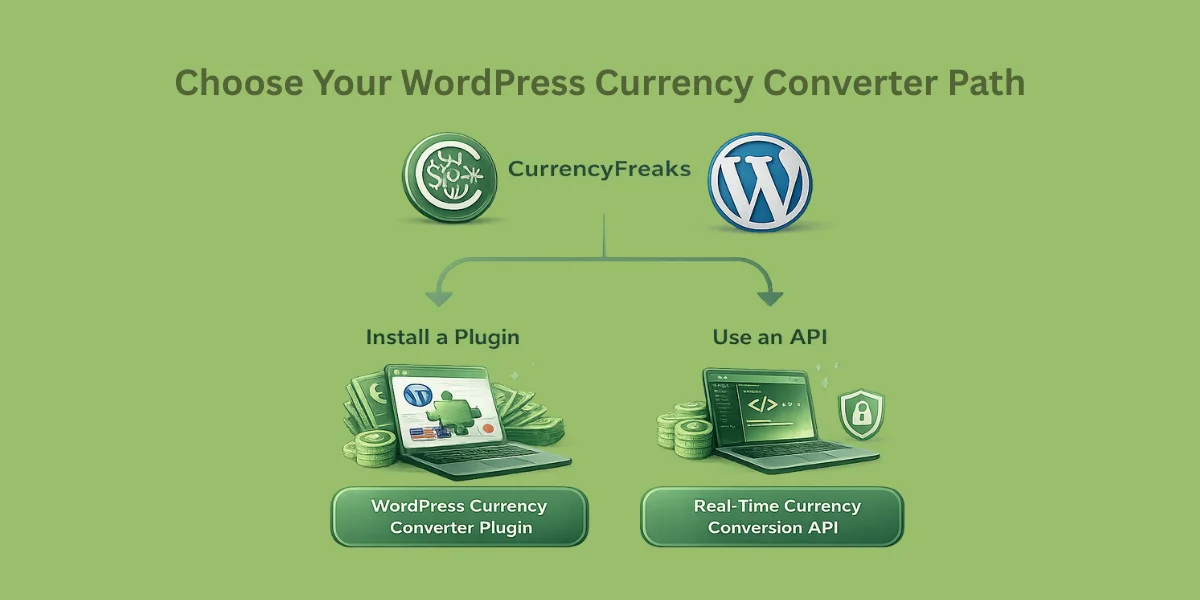
Two Ways To Add A WordPress Currency Converter
You can install a currency converter plugin from WordPress.org, or write a currency shortcode that pulls rates from an API. The plugin is faster to set up. The shortcode gives you control over accuracy and where the conversion logic runs.
Helpful Resource: Python Currency Converter API -- Free and Real-Time
Using A Currency Converter Plugin
A plugin is the fastest way to get started - install it, set a preferred currency, and drop a shortcode or block wherever you need the converter. No code required, and most setups finish in minutes.
The tradeoff is accuracy and control. Most plugins rely on cached rates rather than live data, and free tiers often cap the number of currencies or lock features behind a paid upgrade.
Building A Custom Currency Shortcode With An API
What You'll Build
By the end of this tutorial, your WordPress site will have:
-
Live exchange rates
-
A simple currency converter
-
API-powered real-time data
-
No dependency on paid plugins
Step 1: Get Your CurrencyFreaks API Key
-
Visit CurrencyFreaks
-
Create a free account
-
Copy your API key from the dashboard
You'll use this key to authenticate requests from your WordPress site.
Step 2: Understand the API Endpoint
CurrencyFreaks provides a simple exchange rate endpoint:
Example endpoint structure:
https://api.currencyfreaks.com/v2.0/rates/latest?apikey=YOUR_API_KEY
This returns:
-
Base currency (USD by default)
-
All supported exchange rates
-
Fresh, real-time data
Step 3: Plan the Currency Shortcode
The converter in this guide is a custom shortcode that you:
-
Register in functions.php
-
Wire to the API with JavaScript fetch
-
Embed anywhere (post, page, sidebar)
Step 4: Create a Custom Shortcode in WordPress
Add this code to your theme's functions.php file
(or use a plugin like Code Snippets if you prefer)
function currencyfreaks_converter_shortcode() {
    ob_start();
    ?>
    <div id="currency-converter">
        <input type="number" id="amount" placeholder="Amount" value="1" />

        <select id="from">
            <option value="USD">USD</option>
            <option value="EUR">EUR</option>
            <option value="GBP">GBP</option>
        </select>

        <select id="to">
            <option value="EUR">EUR</option>
            <option value="USD">USD</option>
            <option value="PKR">PKR</option>
        </select>

        <button onclick="convertCurrency()">Convert</button>

        <p id="result"></p>
    </div>

    <script>
        function convertCurrency() {
            const amount = document.getElementById('amount').value;
            const from = document.getElementById('from').value;
            const to = document.getElementById('to').value;
            const resultEl = document.getElementById('result');

            resultEl.innerText = 'Converting...';

            fetch(`https://api.currencyfreaks.com/v2.0/rates/latest?apikey=YOUR_API_KEY&base=${from}&symbols=${to}`)
                .then(response => response.json())
                .then(data => {
                    const rate = data.rates[to];
                    const converted = (amount * rate).toFixed(2);
                    resultEl.innerText = `${amount} ${from} = ${converted} ${to}`;
                })
                .catch(() => {
                    resultEl.innerText = 'Unable to fetch exchange rate.';
                });
        }
    </script>
    <?php
    return ob_get_clean();
}

add_shortcode('currency_converter', 'currencyfreaks_converter_shortcode');
🔒 Important: Replace YOUR_API_KEY with your actual CurrencyFreaks API key.
Step 5: Embed the Converter Anywhere
Use this shortcode in any page or post:
[currency_converter]
Here is the final output:

Step 6: Optional Improvements
You can easily enhance this setup by:
✔ Adding More Currencies
Populate the dropdown dynamically from the API response.
✔ Styling the Converter
Use CSS to match your theme's design.
✔ Caching API Responses
Store rates for a few minutes to reduce API calls and improve performance.
✔ Changing Base Currency
CurrencyFreaks allows flexible base currency handling on paid plans.
Currency Converter Plugin Vs Currency Shortcode: Which Fits Your Site?
A plugin is the right call for a simple blog or brochure site where ease of setup matters more than pinpoint accuracy. A shortcode built on an API makes more sense for an online store, where prices need to stay accurate in real time and you need control over rounding and caching behavior.
Choosing A Currency API For Your WordPress Currency Converter
Not every currency API fits a WordPress site equally well. Some only refresh rates once a day, which can make pricing feel stale when the market moves. Others gate multi-currency support or basic features behind a paid plan.
Look for an API that offers both real-time and historical rates, lets you set any base currency (at least on paid tiers), and runs over HTTPS with clear, documented rate limits.
Helpful Resource: 10 Best Currency Exchange API Options for Developers
Why CurrencyFreaks Fits WordPress
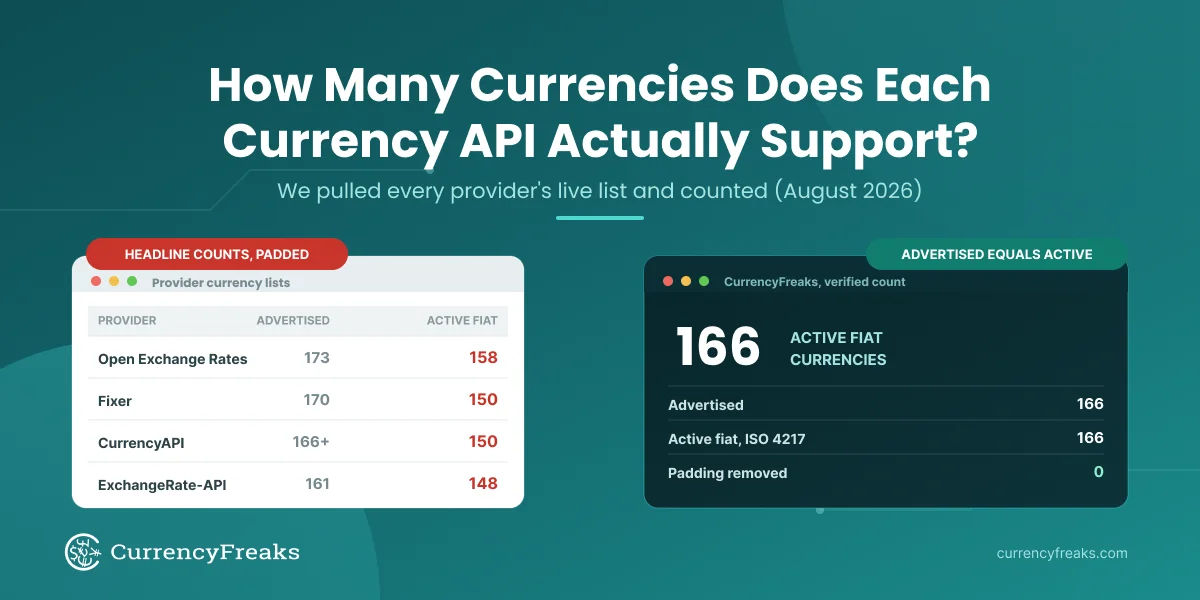
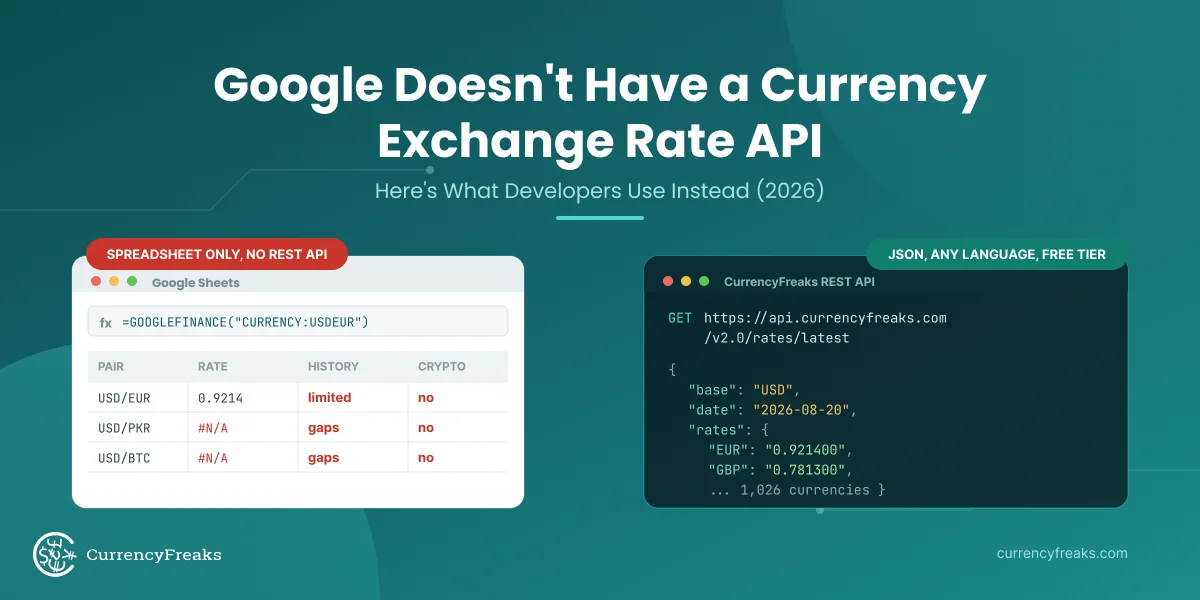
CurrencyFreaks covers 1000+ currencies, including crypto and metals with no extra setup, and updates as fast as every 60 seconds on paid plans (daily on the free plan). It works equally well embedded in a theme, a custom plugin, or a server-side integration - you're not locked into any particular setup.
Prerequisites Before You Start
You'll need a self-hosted WordPress site with access to your theme files or a custom plugin, basic PHP for server-side requests, basic JavaScript for live updates, and a CurrencyFreaks API key.
Add your CurrencyFreaks API key to wp-config.php:
define('CF_API_KEY', 'your_api_key_here');
Never hardcode API keys directly in functions.php. Use wp-config.php or an options table entry to keep them out of version control.
Method 1: Install A Currency Converter Plugin
Install a plugin from WordPress.org, activate it, and set your base currency and update frequency from the dashboard. Add the converter to a page using its shortcode, widget, or block.
Limitations To Be Aware Of
Plugins often limit layout and styling options, gate branding changes behind a paid tier, and serve cached rather than live rates. Location-based currency detection is frequently missing from the free version too.
Method 2: Build A Currency Shortcode With The CurrencyFreaks API
This approach gives you control over exactly how conversion behaves - useful for a store selling internationally that needs pricing precision a generic plugin doesn't offer.
Getting Your CurrencyFreaks API Key
Create a CurrencyFreaks account and open the dashboard to find your API key and usage details.
The free plan is fine for testing and low-traffic sites. Paid plans unlock higher call limits and additional base currencies once you're in production.
Store the API key server-side only - never expose it in frontend JavaScript.
Fetching Live Exchange Rates
The latest-rates endpoint returns clean, easy-to-parse JSON. Limit the response to the currencies you actually display with the symbols parameter to keep payloads small, and handle error status codes like 401 and 429 explicitly rather than assuming every request succeeds.
Creating The Conversion Logic
Take the amount the user enters, multiply by the live rate (using the base currency as your reference point), and round consistently before display - long decimal strings look like a bug even when the math is correct.
Displaying The Currency Shortcode In WordPress
A PHP shortcode is the simplest way to keep the markup and logic together. Add AJAX if you want the result to update without a page reload. The shortcode works in the block editor (Shortcode block), the classic editor, and widget areas.
Optional Enhancements
IP-based detection can pre-select a shopper's likely currency automatically, with a manual override so they can switch it themselves. You can also extend the converter to include crypto or metal rates, and cache responses to cut down on API calls.
Performance, Security, And Best Practices
Never expose your API key in frontend code - fetch rates server-side only. Use WordPress transients to cache rates for a short period rather than calling the API on every page load, and build in a fallback (like the last cached rate) for when the API is briefly unreachable.
Advanced Currency Features: When And Why To Use Them
Historical rates are useful for finance content that references past prices or trends. Time series data works well for dashboards or reports that need to show movement over a range, and IP-based conversion can make an online store feel more local to international shoppers.
Testing And Troubleshooting
Watch for API errors like 401 (bad key), 403 (forbidden), and 429 (rate limit) - each points to a different fix. If the converted numbers look wrong, check the base currency and rounding logic first; that's the most common source of mismatched prices.
Conclusion
A plugin is the right call for a quick, simple setup. An API-based integration costs more time upfront but gives you accuracy and control that scales with traffic - worth it for a store where pricing precision matters. Start with the free currency converter API - no credit card required.
For a PHP-based backend integration with caching and scheduled updates, the Laravel currency API guide covers the same CurrencyFreaks endpoints.
Helpful Resource: Learn about Currency Exchange Rates
FAQs
Can I Add A Currency Converter To WordPress Without Coding?
Yes - a plugin handles setup with no code required, though customization stays limited compared to a custom API integration.
Is It Safe To Use A Currency Conversion API On WordPress?
Yes, as long as the API key stays server-side and requests go over HTTPS.
How Often Should Currency Exchange Rates Be Updated?
E-commerce and SaaS sites benefit from minute-level or hourly updates. A blog referencing prices casually can update far less often.
Can I Convert Cryptocurrencies And Metals In WordPress?
Yes, if your data source supports them - CurrencyFreaks includes both. Many plugins require a paid upgrade for this.
Will A Currency Converter Slow Down My WordPress Site?
Not if you cache rates instead of calling the API on every page load, and only request the currencies you actually display.
Can I Use A Currency Converter With WooCommerce?
Yes, but converting product prices at checkout is a different job from a standalone converter. Running WooCommerce? See our WooCommerce multi-currency guide.
Do I Need A Paid API Plan To Get Accurate Rates?
No - the free plan gives you accurate, live rates with daily updates. Paid plans add faster refresh intervals and higher call volume for production traffic.
Want full control and live rates? Build your currency setup with CurrencyFreaks and scale without limits.