Last updated: 13 August 2026
Building a Shopify store that shows accurate local prices? This guide covers two approaches: using a Shopify app (no code, 5 minutes) or building a custom currency converter with the CurrencyFreaks API (full control, live rates, 1000+ currencies). The API approach is recommended for stores that need rates outside Shopify Markets' supported currency list or want to display mid-market rates rather than Shopify's rounded conversions.
Selling internationally works well until pricing becomes unclear. International shoppers expect prices in their local currency. When that fails, hesitation appears fast.
A currency mismatch adds friction during browsing and checkout. Shoppers start doing mental math and lose momentum. That pause ends in cart abandonment.
Many store owners mix up display currency and checkout settlement currency. Display currency shows localized prices on pages. Checkout currency depends on payment gateways and Shopify Payments.
There are three ways to handle this: use Shopify Markets with Shopify Payments, install a conversion app, or build a custom integration with a currency API. This guide walks through all three so you can pick the right one for your store.
Helpful Resource: Learn about CurrencyFreaks
Understanding Shopify's Native Currency Capabilities
Shopify Markets, Store Currency, and Local Pricing
Every Shopify store starts with a base currency. This currency supports internal accounting and reporting. All product prices are saved in that format to support global sales.
Shopify Markets helps stores sell in multiple currencies. Prices adjust automatically for supported regions. This setup is built specifically for Shopify and works best when paired with Shopify Payments.
A currency switcher updates the prices shoppers see on the page, based on location or a manual selection. Checkout only converts automatically when the currency is one of the gateways you support.
Key Limitations of Shopify's Native Currency Handling
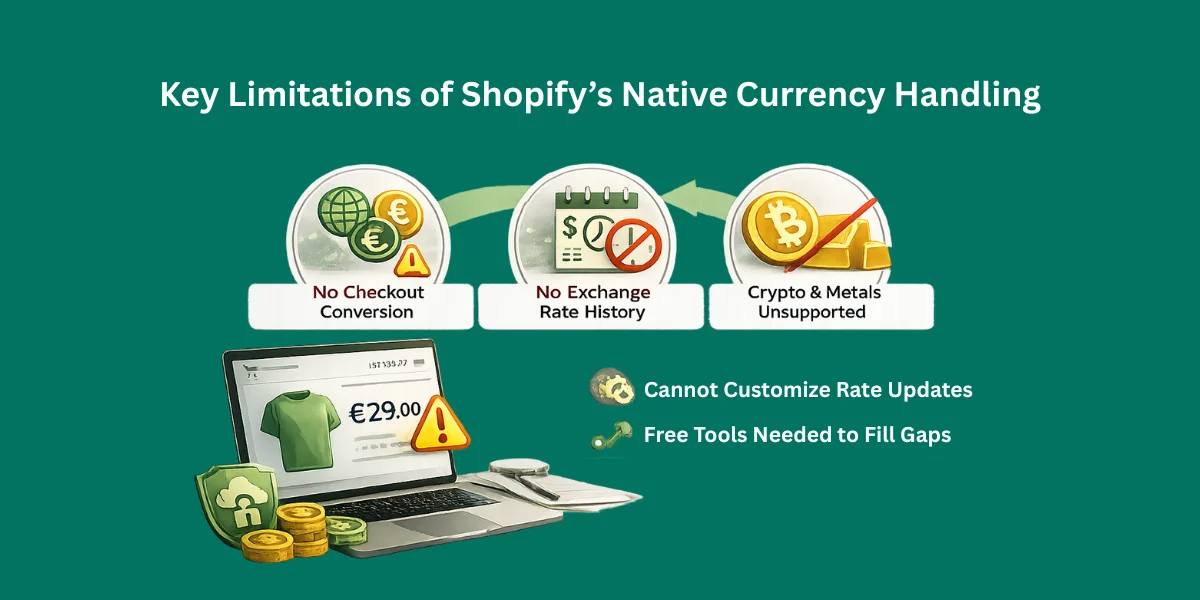
Native currency conversion has limits. Without Shopify Payments, switching affects display only - checkout may still charge in the base currency.
Shopify does not store historical exchange rates, so you cannot look up or lock in a past rate. This limits any pricing logic that depends on historical data.
Crypto and metal pricing are not supported, and you cannot customize how often rates update. This is where a dedicated currency API fills the gap.
Ways to Add a Currency Converter to Shopify
Using a Shopify Currency Converter App
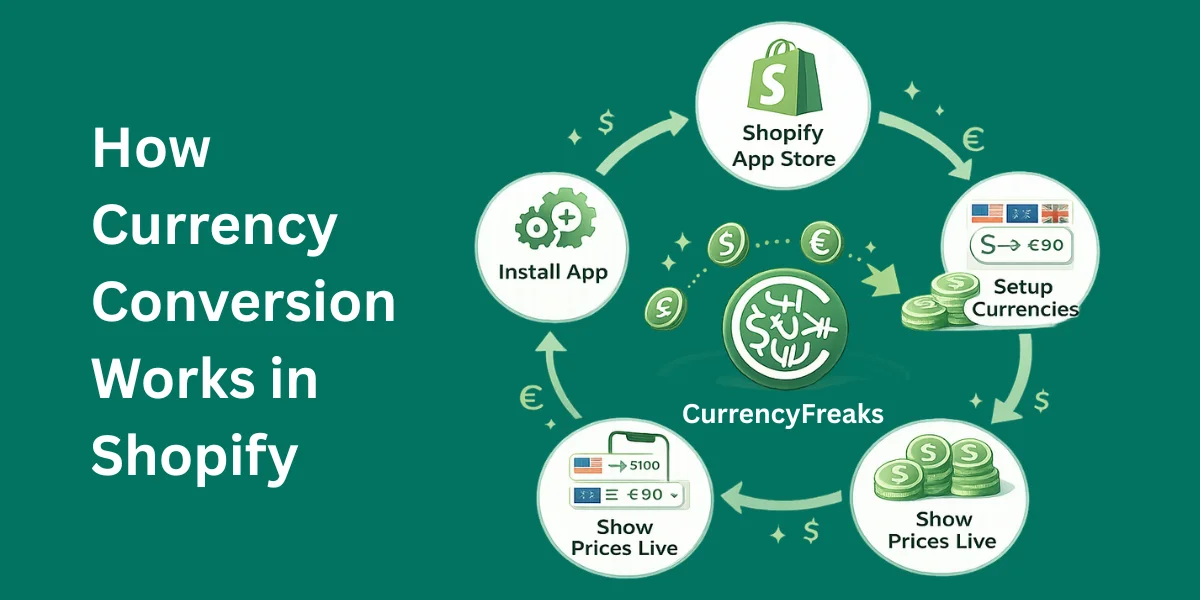
Apps built for Shopify are the fastest way to get started - install from the App Store, no code required. They handle automatic currency conversion for international customers out of the box.
Most apps detect location and add a currency dropdown, showing a clear conversion rate so customers can shop comfortably in their own currency.
Setup is fast for small stores, but costs grow with usage and you're relying on the app's uptime and rate accuracy.
Helpful Resource: How to Integrate Free Currency Converter API in Python?
Building a Custom Currency Converter (API-Based)
A custom currency converter gives you full control over how prices display and how conversions are calculated. You manage the update frequency and the rounding logic yourself, independent of Shopify Payments.
This approach suits international brands and stores with pricing rules more complex than a simple percentage markup - regional discounts, currency-specific rounding, or rates sourced independently of Shopify Markets.
Choosing the Right Currency Conversion API for Shopify
A good currency API for this use case needs a few things: fast responses so it doesn't slow down page loads, both live and historical rate data, broad currency coverage, HTTPS by default, and clear documentation so integration doesn't eat a week of dev time.
CurrencyFreaks covers 1000+ currencies including fiat, metals, and crypto, with rates refreshing every 60 seconds on paid plans (daily on the free plan). It returns both JSON and XML, includes SSL on every plan, and its IP-to-currency endpoint can drive automatic currency detection for the switcher described below.
Helpful Resource: 10 Best Currency Exchange API Options for Developers
Prerequisites Before You Start
You'll need access to your Shopify admin, a working knowledge of Liquid and JavaScript, and theme file access. You'll also need an API key from CurrencyFreaks - free and paid plans both work, depending on your call volume.
Know how prices currently render in your theme before you start. That's the most common source of display bugs once conversion logic is added on top.
Method 1: Adding a Currency Converter Using a Shopify App
Get a currency converter app from the Shopify App Store and install it. Turn on the necessary permissions, then choose which markets and currencies to support.
Enable automatic switching, and decide where the currency selector appears - most apps place it in the header by default.
Limitations
App-based solutions come with tradeoffs. The subscription is ongoing, the conversion logic is usually hidden from you, and rate updates can lag the market. Crypto and metals pricing are rarely supported.
You're also depending on a third party's uptime, and the extra script can slow page loads if the app isn't well built.
Method 2: Building a Custom Currency Converter with CurrencyFreaks API
Getting Your API Key
Create a CurrencyFreaks account, sign in, and open the dashboard to find your API key.
Free plans work well for testing. Paid plans are the right call once you're handling production traffic.
Keep the API key private - treat it like a password, and never commit it to your theme's public files.
Fetching Live Exchange Rates
Use the latest-rates endpoint and limit the response to the currencies you actually need with the symbols parameter - smaller payloads mean faster requests.
// Example: Fetch live rates from CurrencyFreaks
const apiKey = 'YOUR_CURRENCYFREAKS_API_KEY';
const baseCurrency = 'USD';
const symbols = 'EUR,GBP,JPY';

fetch(`https://api.currencyfreaks.com/v2.0/rates/latest?apikey=${apiKey}&base=${baseCurrency}&symbols=${symbols}`)
  .then(response => response.json())
  .then(data => {
    console.log('Exchange rates:', data.rates);
    // Example: Access EUR rate
    const eurRate = parseFloat(data.rates.EUR);
    console.log(`1 ${baseCurrency} = ${eurRate} EUR`);
  })
  .catch(error => console.error('Error fetching rates:', error));
Implementing Currency Conversion Logic
Store all product prices in one base currency to keep pricing consistent across the store, then multiply by the live rate and apply rounding rules per currency.
Handle decimal rules carefully - some currencies (like JPY) use no decimal places, while others need higher precision.
<!-- In product-template.liquid -->
<span class="price" data-base-price="{{ product.price | money_without_currency }}">
  {{ product.price | money }}
</span>
Integrating with Shopify Themes
Add the script in theme.liquid, keeping it light so page load stays fast. Store the base price in a data attribute so your JavaScript can read and convert it without re-fetching from the server.
Apply the conversion logic across product, collection, and cart pages, and give shoppers a clear currency selector.
<select id="currencySwitcher">
  <option value="USD">USD</option>
  <option value="EUR">EUR</option>
  <option value="GBP">GBP</option>
</select>
Optional Advanced Features
You can detect the shopper's likely currency automatically using IP geolocation, then let them override it manually and remember that choice for the rest of their session.
// Example: Detect user's country via IP and switch currency
fetch('https://ipapi.co/json/')
  .then(res => res.json())
  .then(location => {
    const country = location.country;
    let currency = 'USD';
    if(country === 'DE') currency = 'EUR';
    else if(country === 'GB') currency = 'GBP';

    convertPrices(currency); // Use same function from previous snippet
    document.getElementById('currencySwitcher').value = currency;
  });
Performance, Security, and Best Practices
Never expose your API key in frontend code. Route requests through a server-side proxy or a Shopify app proxy instead, so the key never reaches the browser.
Cache rates instead of fetching on every page load, apply rounding server-side, and only request the currencies you actually display. Monitor your call usage so you notice a problem before you hit the plan limit.
// server.js
import express from 'express';
import fetch from 'node-fetch';
const app = express();

app.get('/rates', async (req, res) => {
  const apiKey = process.env.CURRENCYFREAKS_API_KEY;
  const symbols = req.query.symbols || 'EUR,GBP';
  const response = await fetch(`https://api.currencyfreaks.com/v2.0/rates/latest?apikey=${apiKey}&symbols=${symbols}`);
  const data = await response.json();
  res.json(data);
});

app.listen(3000, () => console.log('Currency proxy running on port 3000'));
Advanced Use Cases for Shopify Stores
Larger stores often combine live rates with region-specific pricing rules - different rounding or promotional pricing per market instead of a flat conversion. Historical rate data is also useful here for analyzing how currency swings have affected sales over time, since Shopify doesn't retain that data itself.
Display currency and checkout (settlement) currency can differ intentionally in these setups, as long as the difference is clear to the shopper before they pay.
Testing and Troubleshooting
Check that product, cart, and checkout prices agree with each other on every page - a mismatch there is the most common bug in a custom integration.
Add a fallback currency for any code not in your supported list, so an unrecognized currency doesn't break the display.
Watch your API rate limits and test across browsers and devices - small conversion mismatches are quick to erode buyer trust.
Conclusion
Apps are the right call when speed and simplicity matter more than control - a good fit for small stores that want something working today with minimal setup.
A custom API integration offers more control and accuracy at scale: you set the rounding rules, the update frequency, and which currencies to support, independent of what Shopify Markets covers.
Which one to choose comes down to store size, traffic, and how much control you need over pricing logic. Start with the free currency converter API - no credit card required.
FAQs
Can I Add A Currency Converter To Shopify Without Coding?
Yes. A Shopify currency converter app handles setup automatically, though customization stays limited compared to a custom API integration.
Does Shopify Automatically Convert Currencies At Checkout?
Only with Shopify Payments enabled. Otherwise, currency conversion is display-only and checkout still charges in the store's base currency.
Is It Safe To Use A Currency Conversion API With Shopify?
Yes, as long as you keep the API key server-side. Proxy requests through your own backend or a Shopify app proxy rather than calling the API directly from theme JavaScript.
Can I Show Crypto Or Metal Prices On My Shopify Store?
Yes, with a dedicated API - CurrencyFreaks supports both. Shopify's native currency tools do not.
Will Currency Conversion Slow Down My Shopify Store?
Not if you cache rates server-side instead of fetching on every page load. An uncached call on every request is what causes the slowdown, not the conversion logic itself.
Can I Control How Often Exchange Rates Update?
Yes, with a custom API integration you control the refresh interval directly. Most Shopify apps limit this to whatever schedule they've built in.
Do Currency Converters Affect Shopify SEO?
No, when implemented correctly. Prices update dynamically on the page, and URLs stay unchanged.
Use CurrencyFreaks to power clean, accurate currency conversion that scales as your Shopify store grows.