

Have you ever sent a bill to a customer in another country? If you send, then you know how tough it is. You convert currency API and the prices manually, and check the latest exchange rate. This manual process creates problems. But a currency exchange rates api help you solve it.
The exchange rates are not consistent all the time. This thing makes billing errors and wastes time. This is a major issue for companies that sell things in other countries.
The Currency Exchange Rates API solves this issue and gives you real-time rates. Because of this, your computer handles all your work. You can create bills instantly and correctly without any errors in any currency.
In this CurrencyFreaks blog, we will talk about how to build a system to automate multi-currency billing. We will discuss the most important factors, explain how the currency exchange rates api works, and provide step-by-step instructions.
What Is A Multi-Currency Invoice System?
A Multi-Currency Invoice System is a platform this platform automatically creates invoices in multiple currencies. This process uses live currency exchange rates. This thing ensures that all your customers see prices in their local currency.
This system is not only for big companies. Some other platforms, such as SaaS platforms, freelancing platforms, e-commerce stores, and global vendors, benefit greatly. Using this system improves key metrics for business. Because of this, you get better accuracy and transparency in your billing. It also helps you with your cash flow and makes your system more reliable.
Why Real-Time Currency Conversion API Matters In Invoices
Using the currency exchange rates api in your invoices is a very important factor. It helps you to understand the prices of different countries in your own currency. If you use old rates and static rates, you might lose your money because the value has changed and you didn’t notice.
Real-time currency exchange rates api builds the trust of customers. They see the exact amount they need to pay in their own currency. This thing makes the process easy and transparent. Automation reduces payment problems because it shows live rates so that customers understand the price. When they know everything, they pay faster. You receive the smooth transactions.
Core Components Of A Multi-Currency Invoice System
A multi-currency system has several parts. First, you need an Invoice Generator. This is the backend logic or platform. It creates an invoice automatically. After that, you need an Items and Base Currency Database. This is the place where your product prices are stored. It is also the main operating currency of your company, such as USD or EUR.
Then, you need Integration with a Currency Exchange Rates API. This is the most important part of the system. It fetches the real-time rates. It can also get past rates for accounting. An automation process using Webhooks or Cron Jobs is required to run the system fully.
These rates update daily and reuse the invoices. Frontend Invoice Templates are also needed for this. These are the PDF or HTML layouts. They show the converted amounts to your customer. At last, you need to integrate with a Payment Gateway. Examples include Stripe, PayPal, or Razorpay. These handle all real payments.
How A Currency Exchange Rates API Powers Multi-Currency Invoicing
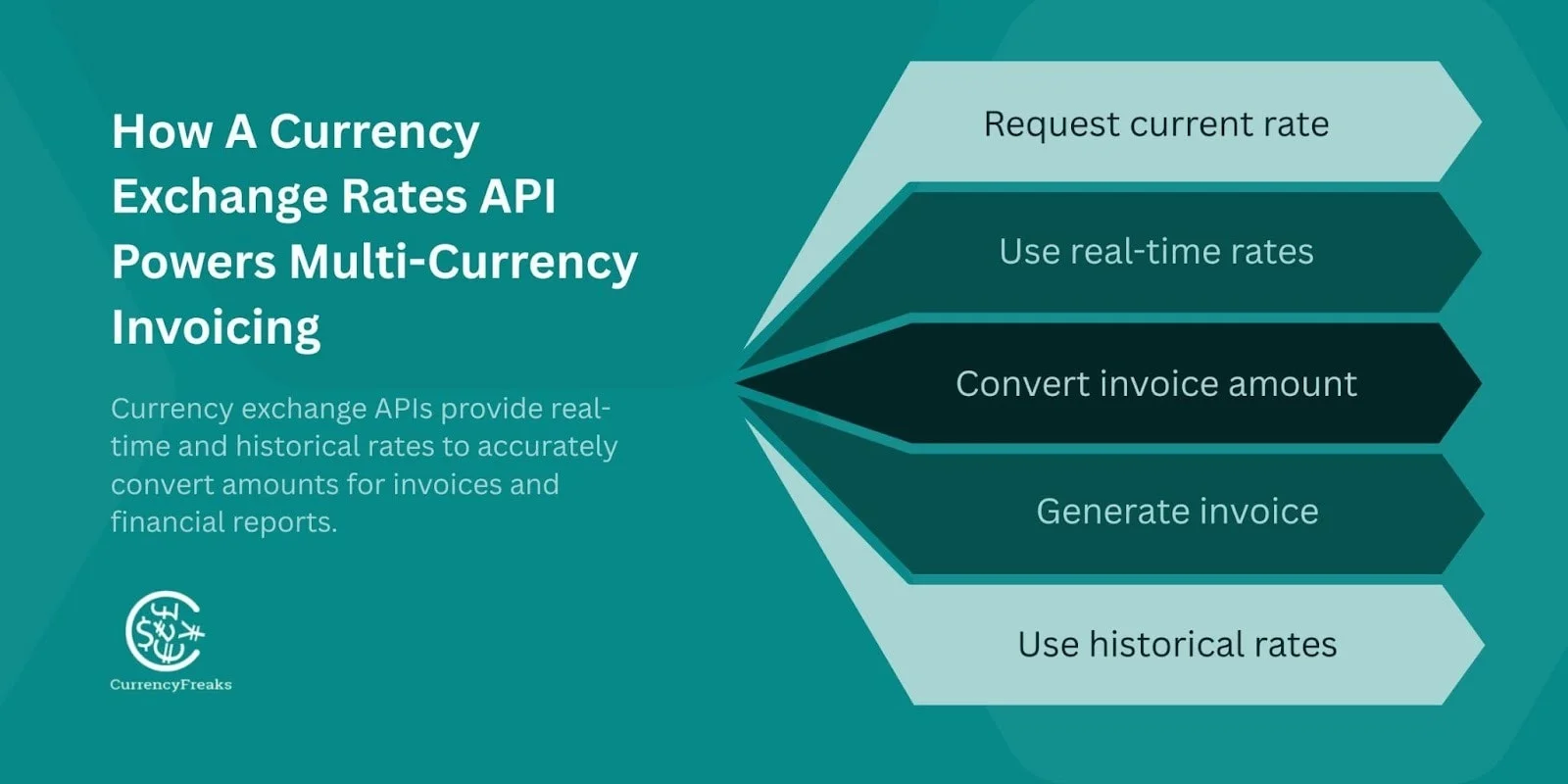
A typical workflow is simple. Your system requests the currency exchange rates api. It then applies this rate to calculate the conversion. Finally, it uses the converted amount when generating the invoice.
A Currency Exchange Rate API is a very important factor in your system. It gives the financial data that you need. The main points of currency exchange rates api endpoints are historical and real-time rates. For creating current invoices, you will use real-time rates. After that, you will need to use historical rates for correct financial reports.
Currency Exchange APIs work better because they are fast, accurate, and reliable. They offer stability, and they return your data in a very easy-to-read JSON format. The important thing is that CurrencyFreaks offers a free tier to get started.
The process is very simple. From your system, you send requests to the currency exchange rates api to fetch the latest rates. It uses that rate to convert the money exchange api. After that, it uses the converted amount in the invoice generation process.
If you want to learn about mastering Golang, then read this blog CurrencyFreaks guide on mastering Golang for currency APIs.
Step-By-Step Guide: Building An Automated Multi-Currency Invoice System
Here is the step-by-step guide to building your system.
Step 1: Choose Your Base Currency
First, you need to decide on the base/main currency for API requests. For your internal accounting, you use this currency. Use one main or primary currency at all prices. For example, the US currency should use USD as the main currency.
Step 2: Fetch Live Exchange Rates Using A Currency Exchange Rates API
Now get the latest API exchange rates. Use programming tools such as Node.js and Python. Send a request to an API endpoint. E.g., use the CurrencyFreaks API.
$curl'<https://api.currencyfreaks.com/v2.0/rates/latest?apikey=YOUR_APIKEY>'
Now the currency exchange rates API will respond and give you data in JSON format. All you need is to process this data. Match the customer's currency; this gives you a converted amount.
Here is the JSON response:
{

"date": "2023-03-21 12:43:00+00",

"base": "USD",

"rates": {

"AGLD": "2.3263929277654998",

"FJD": "2.21592",

"MXN": "18.670707655673546",

"LVL": "0.651918",

"SCR": "13.21713243157135",

"CDF": "2068.490771",

"BBD": "2.0",

"HNL": "24.57644632001569",

.

.

.

}

}
Step 3: Automate Invoice Generation
First of all, decide when to create an invoice, such as checkout, renewal of subscription, or when someone clicks a button manually. After that, use your code to find out the customer's local currency. You can automatically get this from their profile and from their location using their IP address.
Step 4: Apply Real-Time Currency Conversion To Line Items
Now use the currency rate to change the price of every item on the invoice. Then change the total amount. Change the taxes.
You can also add a small FX margin to cover the exchange costs. (This margin is optional, but sometimes it’s helpful.)
If you want to learn about the 10 best currency exchange API, then read this blog, CurrencyFreaks API.
Step 5: Auto-Send Invoices Via Email Or Webhook
Now generate the final invoice as a PDF and HTML email. Never forget to include important metadata, because it includes the original base currency. It used the exact FX rates and time stamp of the conversion.
Step 6: Store Currency & Rate Used For Accounting
This step is very critical for some legal reasons. You must store the exact currency and rates that are used for every invoice. Tax authorities may ask for this information in the future. If you ever need to review an old invoice, you can use the currency exchange rates API's historical data rates to check what it was at that time.
Code Example: Applying Real-Time Currency Conversion
Now, let’s look at simple examples of currency exchange rates API for currency conversion. See how the currency conversion rates API works.
Suppose that your base currency is USD. A customer in Europe needs an invoice in EUR. The cost of your product is $100.00. Then you fetch the rate: 1 USD = 0.93 EUR.
Sample Invoice Object for Currency Pair
| Item | USD (Before Conversion) | EUR (After Conversion) |
|---|---|---|
| Product Price | $100.00 | €93.00 |
| FX Rate Used | 0.93 | 0.93 |
| Tax (10%) | $10.00 | €9.30 |
| Total | $110.00 | €102.30 |
Handling Rate Fluctuations: Best Practices
Currency rates keep changing from time to time. You need to handle them carefully. When a customer confirms any order, lock the rate so it stays the same for that transaction. Update the rates daily.
To avoid too many API calls, use caching. Save the rate in your system for some hours. This thing makes your system faster and reduces the usage of the API. Remember one thing, that on weekends and days off, currency rates may not update. Make sure your system knows how to handle those days.
Adding Webhooks For Fully Automated Updates
Webhooks give real-time communication between the systems. They work faster and better than scheduled jobs. You can use them to exchange rates automatically every day. They also update your store prices in the database on their own.
This is very useful, especially if your system sends invoices monthly. Webhook automatically creates the new invoice using the current exchange rates.
Detailed guide by CurrencyFreaks, Building an e-commerce system using a Forex API.
Code Example of an Automated Multi-Currency System
Step 1:
In your project folder, create a file named index.html
Step 2:
Create invoice template using HTML and CSS:
<!DOCTYPE html>
<html lang="en">
<head>
<meta charset="UTF-8">
<meta name="viewport" content="width=device-width, initial-scale=1.0">
<title>Multi-Currency Invoice Generator</title>
<style>
    body {
        font-family: Arial, sans-serif;
        background: #f4f6f9;
        margin: 0;
        padding: 20px;
    }

    .container {
        max-width: 900px;
        margin: auto;
        background: white;
        padding: 25px;
        border-radius: 10px;
        box-shadow: 0px 0px 10px #ddd;
    }

    h2 {
        text-align: center;
        margin-bottom: 20px;
    }

    label {
        font-weight: bold;
    }

    select, input {
        width: 100%;
        padding: 10px;
        margin-top: 5px;
        margin-bottom: 15px;
        border-radius: 5px;
        border: 1px solid #ccc;
    }

    .btn {
        background: #04AA6D;
        color: white;
        padding: 12px;
        border: none;
        width: 100%;
        cursor: pointer;
        font-size: 16px;
        border-radius: 5px;
    }

    .btn:hover { background: #038d5a; }

    .invoice-box {
        margin-top: 30px;
        padding: 20px;
        border: 1px solid #ccc;
        border-radius: 10px;
        background: #fafafa;
    }

    table {
        width: 100%;
        border-collapse: collapse;
        margin-top: 15px;
    }

    table th, table td {
        padding: 8px;
        border-bottom: 1px solid #ddd;
    }
</style>
</head>
<body>

<div class="container">
    <h2>Automated Multi-Currency Invoice System</h2>

    <!-- Base Currency -->
    <label>Base Currency (Your Pricing Currency)</label>
    <select id="baseCurrency">
        <option value="USD">USD</option>
        <option value="EUR">EUR</option>
        <option value="GBP">GBP</option>
    </select>

    <!-- Customer Currency -->
    <label>Customer Currency</label>
    <select id="customerCurrency">
        <option value="EUR">EUR (Europe)</option>
        <option value="PKR">PKR (Pakistan)</option>
        <option value="INR">INR (India)</option>
        <option value="GBP">GBP (UK)</option>
    </select>

    <!-- Item Price -->
    <label>Item Price (in Base Currency)</label>
    <input type="number" id="itemPrice" value="100">

    <!-- Quantity -->
    <label>Quantity</label>
    <input type="number" id="qty" value="1">

    <!-- Tax -->
    <label>Tax %</label>
    <input type="number" id="tax" value="10">

    <button class="btn" onclick="generateInvoice()">Generate Invoice</button>

    <div id="invoice" class="invoice-box" style="display:none;"></div>
</div>
</body>
</html>
Step 3:
Fetch currency rates from the currency exchange rates API and automate the conversion on platform using this script:
Following is complete working code example:
<!DOCTYPE html>
<html lang="en">
<head>
<meta charset="UTF-8">
<meta name="viewport" content="width=device-width, initial-scale=1.0">
<title>Multi-Currency Invoice Generator</title>
<style>
    body {
        font-family: Arial, sans-serif;
        background: #f4f6f9;
        margin: 0;
        padding: 20px;
    }

    .container {
        max-width: 900px;
        margin: auto;
        background: white;
        padding: 25px;
        border-radius: 10px;
        box-shadow: 0px 0px 10px #ddd;
    }

    h2 {
        text-align: center;
        margin-bottom: 20px;
    }

    label {
        font-weight: bold;
    }

    select, input {
        width: 100%;
        padding: 10px;
        margin-top: 5px;
        margin-bottom: 15px;
        border-radius: 5px;
        border: 1px solid #ccc;
    }

    .btn {
        background: #04AA6D;
        color: white;
        padding: 12px;
        border: none;
        width: 100%;
        cursor: pointer;
        font-size: 16px;
        border-radius: 5px;
    }

    .btn:hover { background: #038d5a; }

    .invoice-box {
        margin-top: 30px;
        padding: 20px;
        border: 1px solid #ccc;
        border-radius: 10px;
        background: #fafafa;
    }

    table {
        width: 100%;
        border-collapse: collapse;
        margin-top: 15px;
    }

    table th, table td {
        padding: 8px;
        border-bottom: 1px solid #ddd;
    }
</style>
</head>
<body>

<div class="container">
    <h2>Automated Multi-Currency Invoice System</h2>

    <!-- Base Currency -->
    <label>Base Currency (Your Pricing Currency)</label>
    <select id="baseCurrency">
        <option value="USD">USD</option>
        <option value="EUR">EUR</option>
        <option value="GBP">GBP</option>
    </select>

    <!-- Customer Currency -->
    <label>Customer Currency</label>
    <select id="customerCurrency">
        <option value="EUR">EUR (Europe)</option>
        <option value="PKR">PKR (Pakistan)</option>
        <option value="INR">INR (India)</option>
        <option value="GBP">GBP (UK)</option>
    </select>

    <!-- Item Price -->
    <label>Item Price (in Base Currency)</label>
    <input type="number" id="itemPrice" value="100">

    <!-- Quantity -->
    <label>Quantity</label>
    <input type="number" id="qty" value="1">

    <!-- Tax -->
    <label>Tax %</label>
    <input type="number" id="tax" value="10">

    <button class="btn" onclick="generateInvoice()">Generate Invoice</button>

    <div id="invoice" class="invoice-box" style="display:none;"></div>
</div>

</body>
</html>
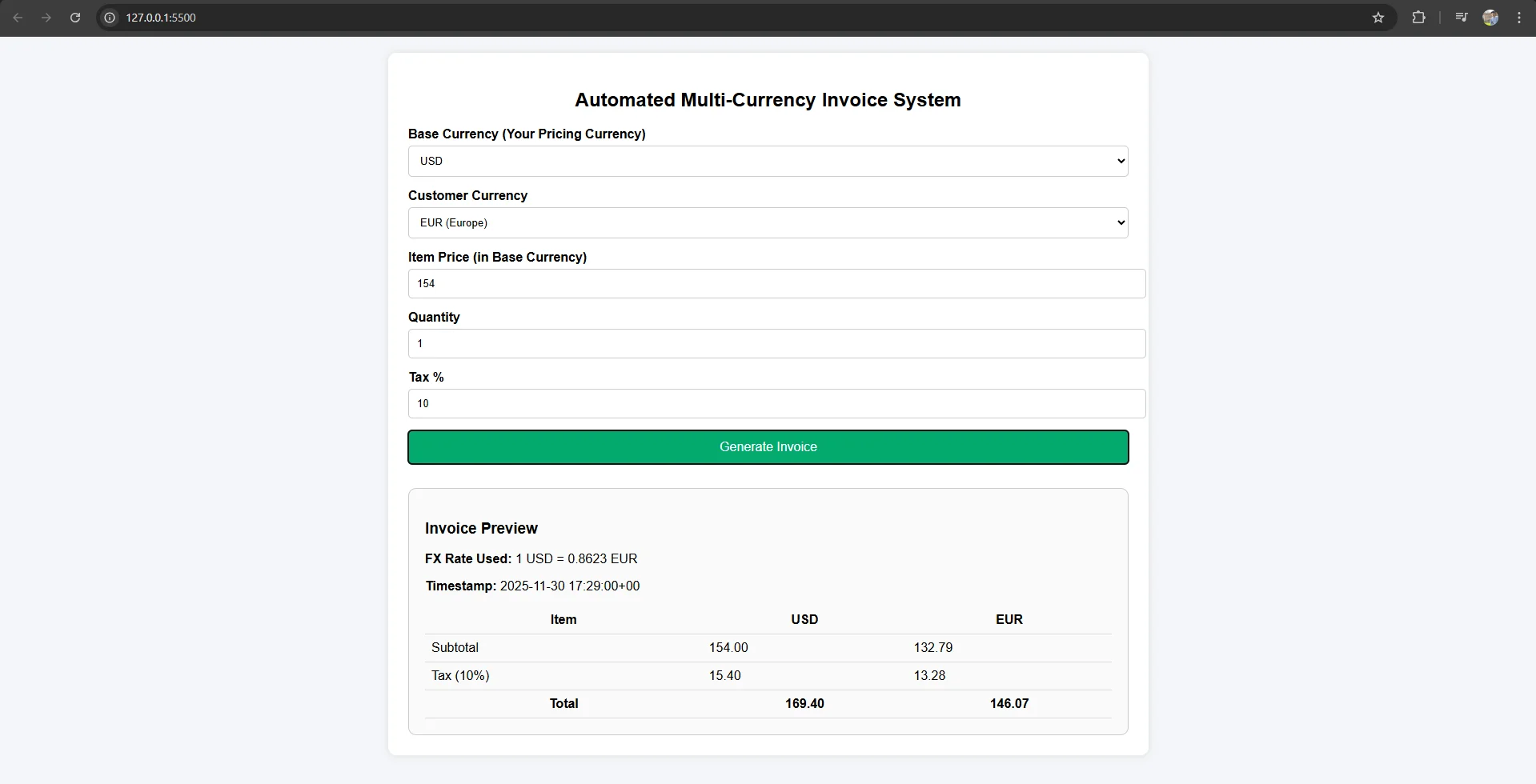
Output:
Use Cases Of A Multi-Currency Invoice System
This technology is very helpful. Platforms such as SaaS, with customers around the world, need it. Clients who charge freelancers in different currencies also benefit a lot. B2B companies work with international suppliers, so they also use this.
It is also important for e-commerce stores that sell globally. And a multi-vendor marketplace needs it to pay vendors in different, different countries smoothly and effectively.
If you want to learn about APIs and tools used in 2024, then read this blog by CurrencyFreaks' top 10 currency conversion APIs.
Advanced Enhancements
Do you want to improve your system further? Then add a Currency Selector Width to your website so the customer can pick the currency they want. For support, create PDF invoice templates. Connect your system with payment services like Stripe and PayPal. Also, you can save each customer’s currency in their profile. At last, offer a real-time invoice preview before payment!
Check the best currency conversion services.
Common Mistakes To Avoid
-
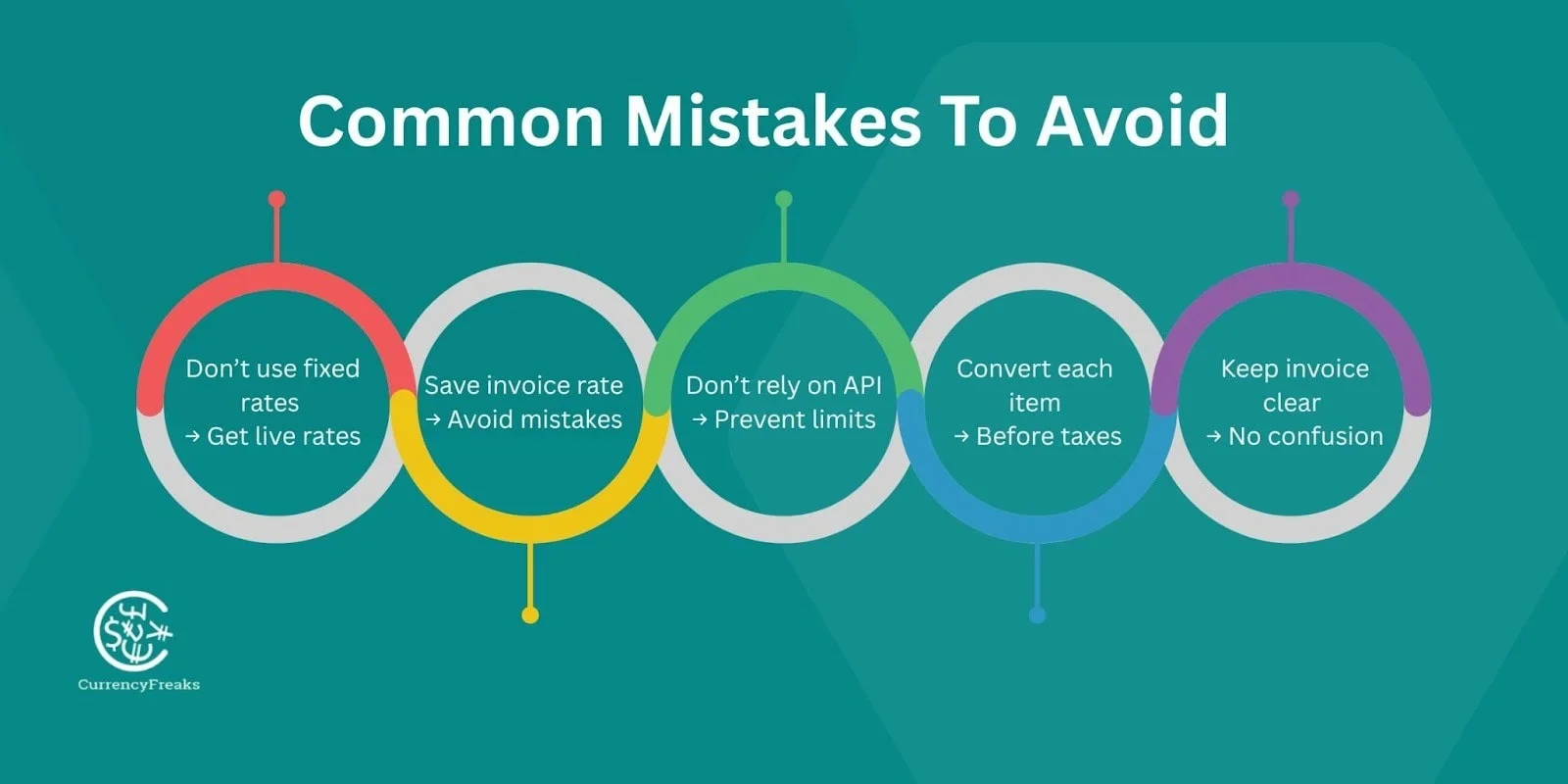
Never use static exchange rates.
-
Always fetch exchange rates live.
-
Not storing the FX rate per invoice is a major accounting mistake.
-
Over-relying on free foreign exchange rates API endpoints in production can cause rate limits.
-
Apply conversion to the line items, not just the total.
-
Applying conversion after taxes is often incorrect.
-
Avoid showing a confusing FX breakdown on the invoice.
-
Keep the format of the invoice simple and clear.
Conclusion
An automated invoice is very important if you want to succeed globally. Billing manually takes too much time and often leads to mistakes. A good API fixes all these issues. It gives you correct, real-time foreign exchange API rates and no hidden fees business. With this, you will get clear insights, and your flow of costs will increase fast.
This makes your business easy to handle with accurate rates from european central bank. With this, you build strong trust with your customers. You need this type of automation to compete worldwide. Because of this, global invoicing is much simpler and better. Note that CurrencyFreaks comes with effortless integration of exchange rate data within the API marketplace.
FAQs
How Often Should Exchange Rates Be Updated?
Update your exchange rates at least once a day for display. For creating an actual invoice, always use the live rate at that moment.
Can I Lock a Currency Rate for a Customer?
Yes. Once the customer completes the purchase, lock the rate. This avoids confusion and protects your profit from sudden rate changes.
Does CurrencyFreaks Provide Historical Rates for Tax Reporting?
Yes. CurrencyFreaks currency code paid plans include historical rates. You can use these to meet tax and accounting rules by showing the exact rate used on any past date. For CurrencyFreaks, you can either choose monthly or annual billing plan.
Can I Integrate This With My Existing Invoicing Backend?
Yes. A Currency Exchange API uses standard REST calls. You can add it to any modern backend, including custom invoicing tools. It works easily in Python and Node.js.
How Do I Display a Currency Breakdown on Invoices?
Show the converted price without confusion. Then add the base currency, the converted amount, the exact FX rate used, and the date and time of conversion. This keeps billing transparent.
Try a reliable API, CurrencyFreaks, today. Start automating your multi-currency invoices.


