
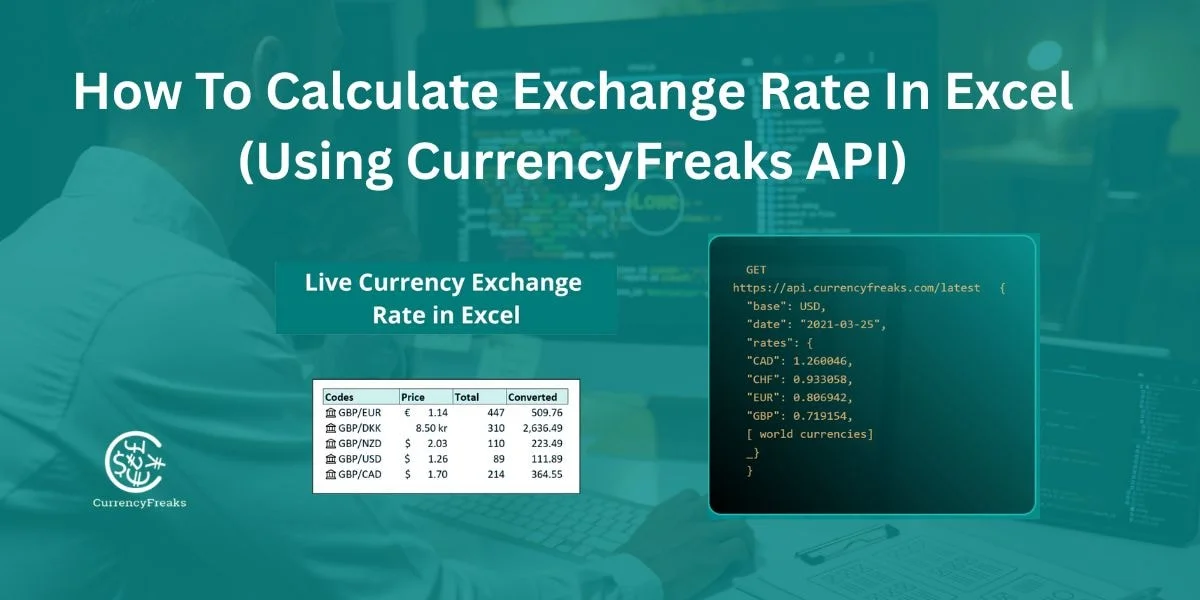
Handling international invoices, travel budgets, or cross-border e-commerce sales? Then you know the problem. It is a big pain to manually track the ever-changing exchange rates in your spreadsheets.
Conversion of currencies should be fast and accurate. Excel is used by many people to do some quick calculations. However, old, fixed-rate data is usually used. This causes errors and high costs.
In this blog, you will learn:
-
Understanding Exchange Rate Calculation Basics
-
How To Do Currency Conversion In Excel (Manually)
-
Automating Exchange Rates In Excel With CurrencyFreaks API
-
Real-World Example: Live Currency Conversion In Excel
-
Adding Historical Or Fluctuating Exchange Rates
-
Advanced Tips For Developers
-
Why Use CurrencyFreaks For Excel Currency Conversion?
We will explain the simple currency conversion formula and show how to set up live integration. You will also learn how to automate multiple conversions with the currency conversion tools. So let’s get started.
Let’s get started.
Understanding Exchange Rates
What is an exchange rate? It is just the value of one country’s currency compared to another currency. For example, when 1 US Dollar (USD) is equal to 0.92 Euros (EUR), the USD/EUR exchange rate will be 0.92.
Excel uses the following basic formula for currency conversion:
Original Amount x Exchange rate = Converted Amount.
Let’s look at an example. Suppose that you need to change 100 USD to EUR. An Excel formula for currency conversion would calculate, if you manually enter a fixed rate of 0.92.
100×0.92 = 92 EUR
The process is fast when it comes to one-time conversions. However, we all know that exchange rates keep changing in the market. Therefore, it becomes hard to calculate rates manually every time. This problem becomes more challenging when you have 100s of records in Excel.
If you are looking for quality APIs, explore the 10 Best Currency Exchange APIs.
How to Calculate Exchange Rate in Excel Through a Basic Exchange Rate Formula
Let us see the steps of manual conversion in Excel. This gives us a starting point, and then we will move towards automation.
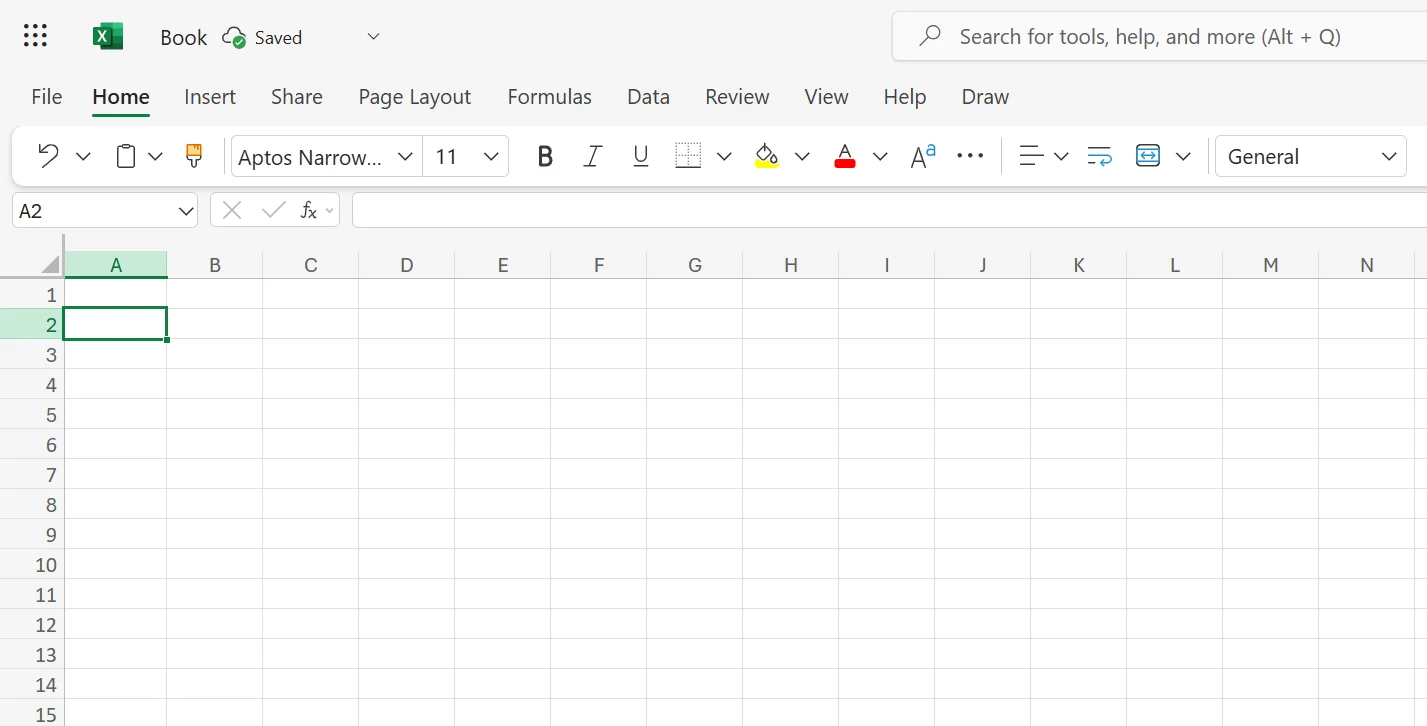
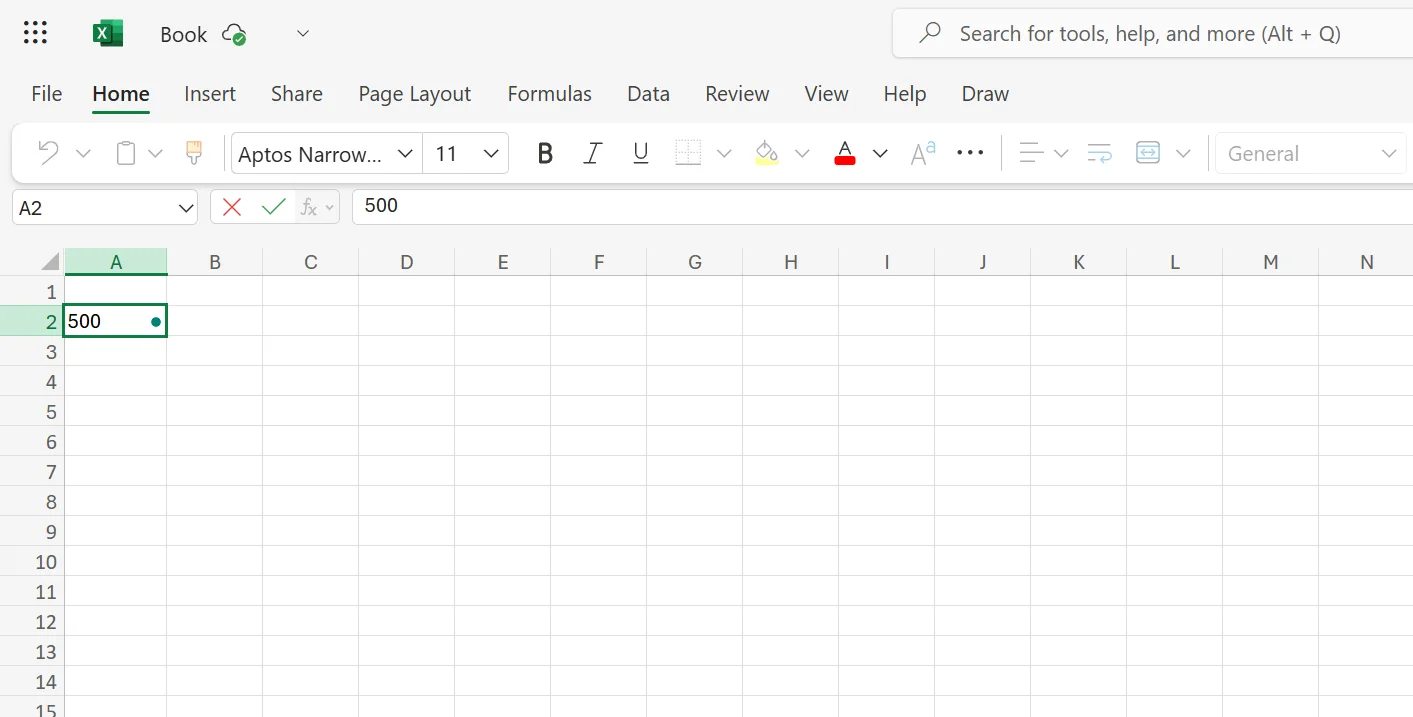
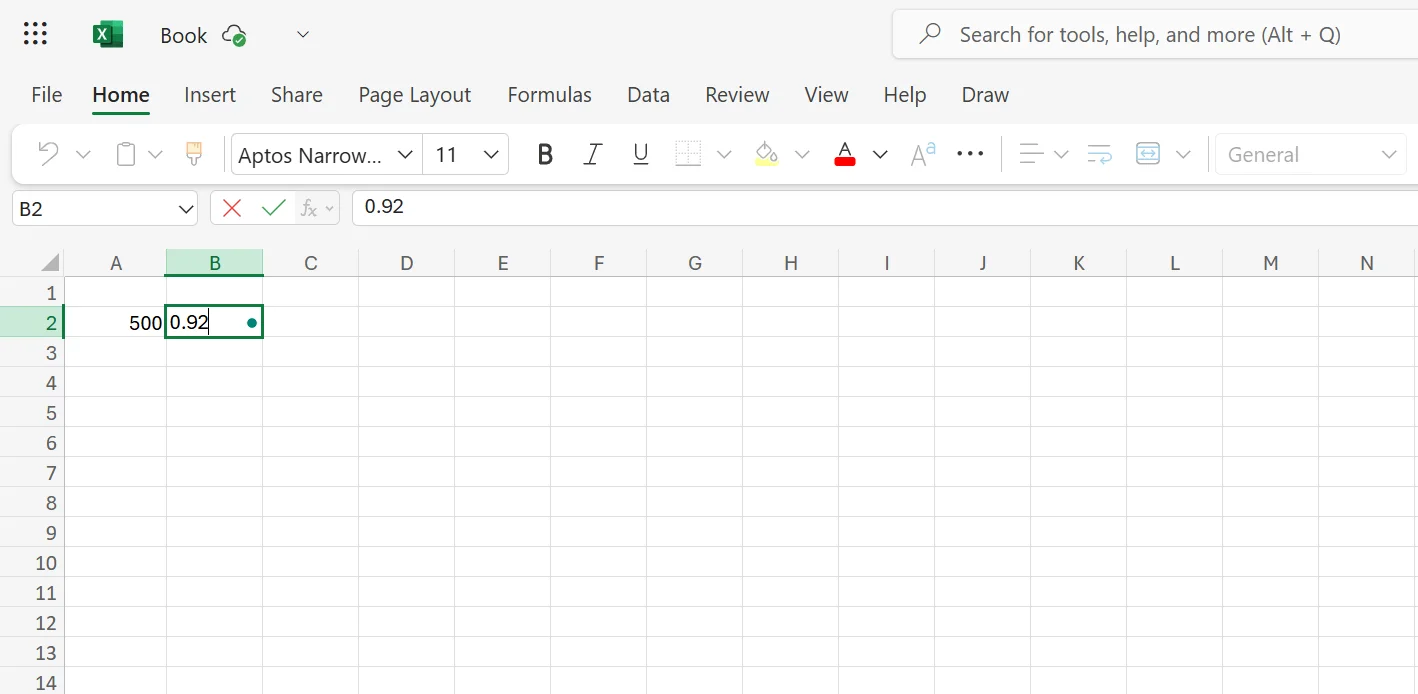
Open the Excel workbook and click on cell A2 and enter the amount you want to convert:
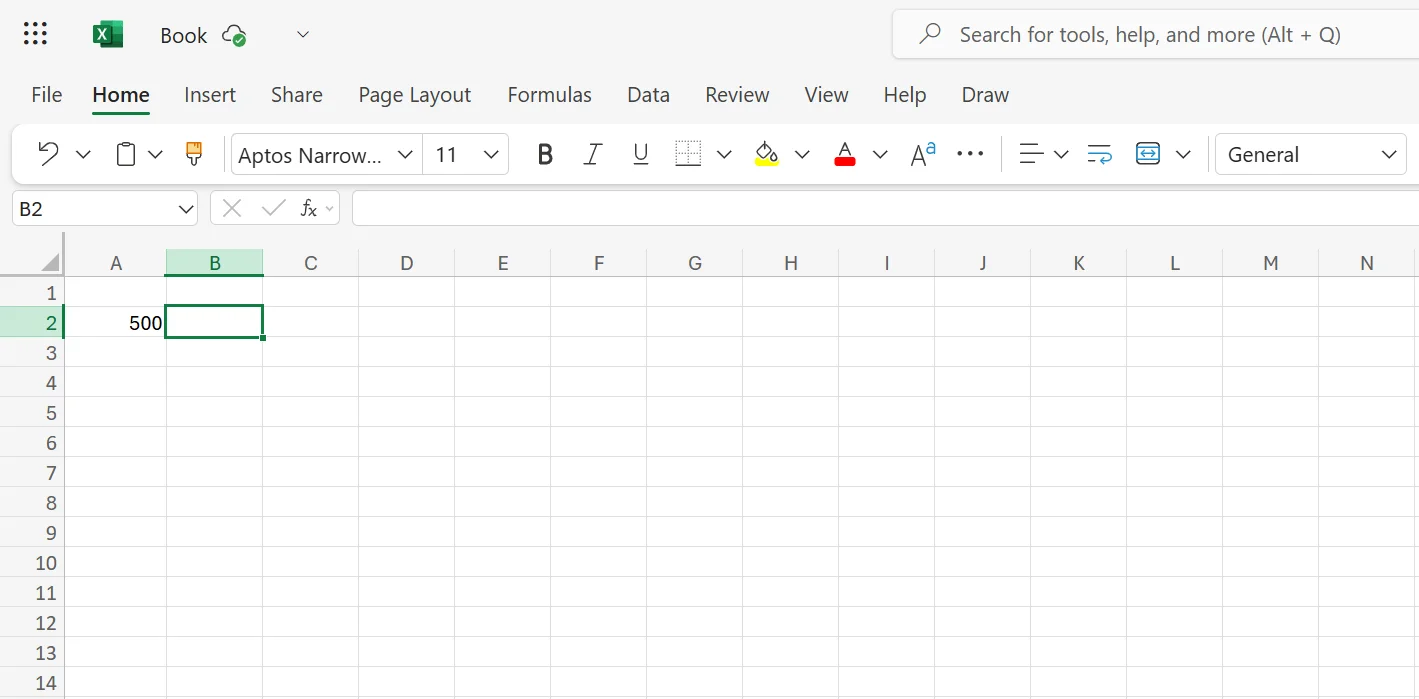
Next, click on Cell B2 and enter the exchange rate for conversion:
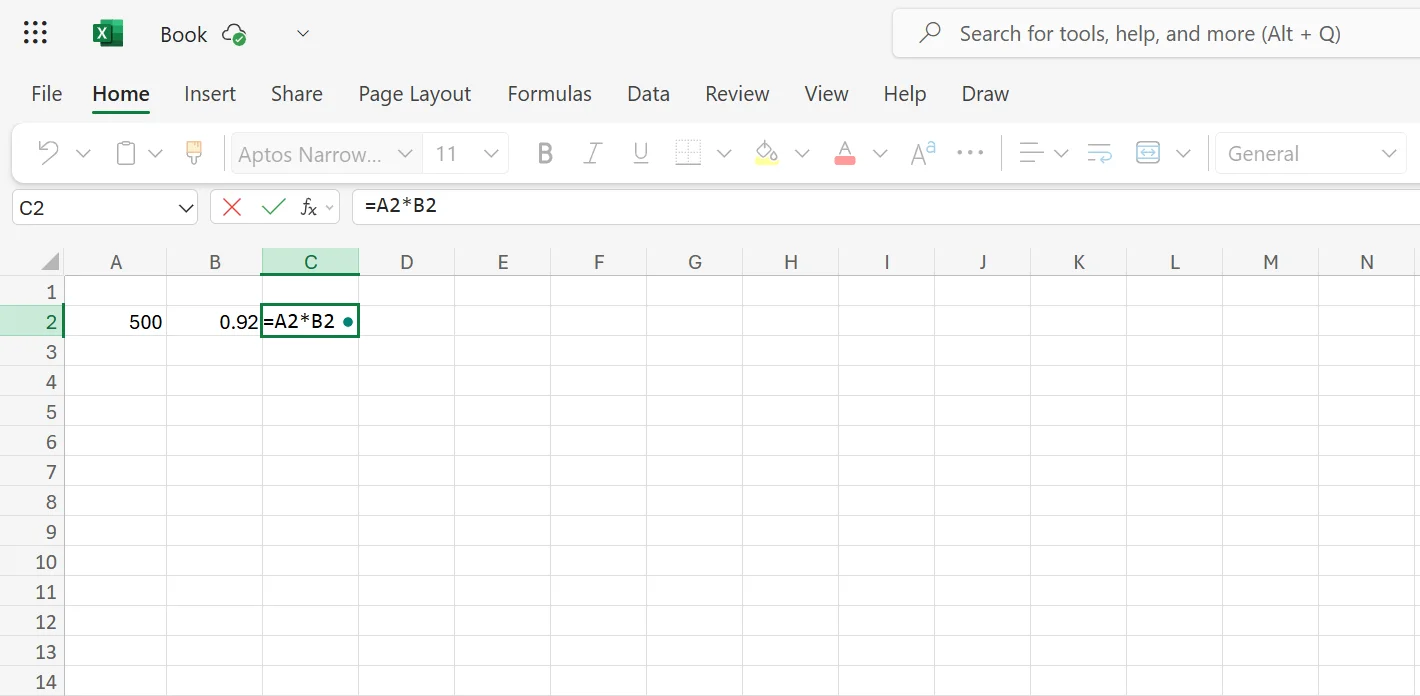
Then, you need to enter the simple conversion formula in the cell C2:
You will be able to see the conversion calculated as under:
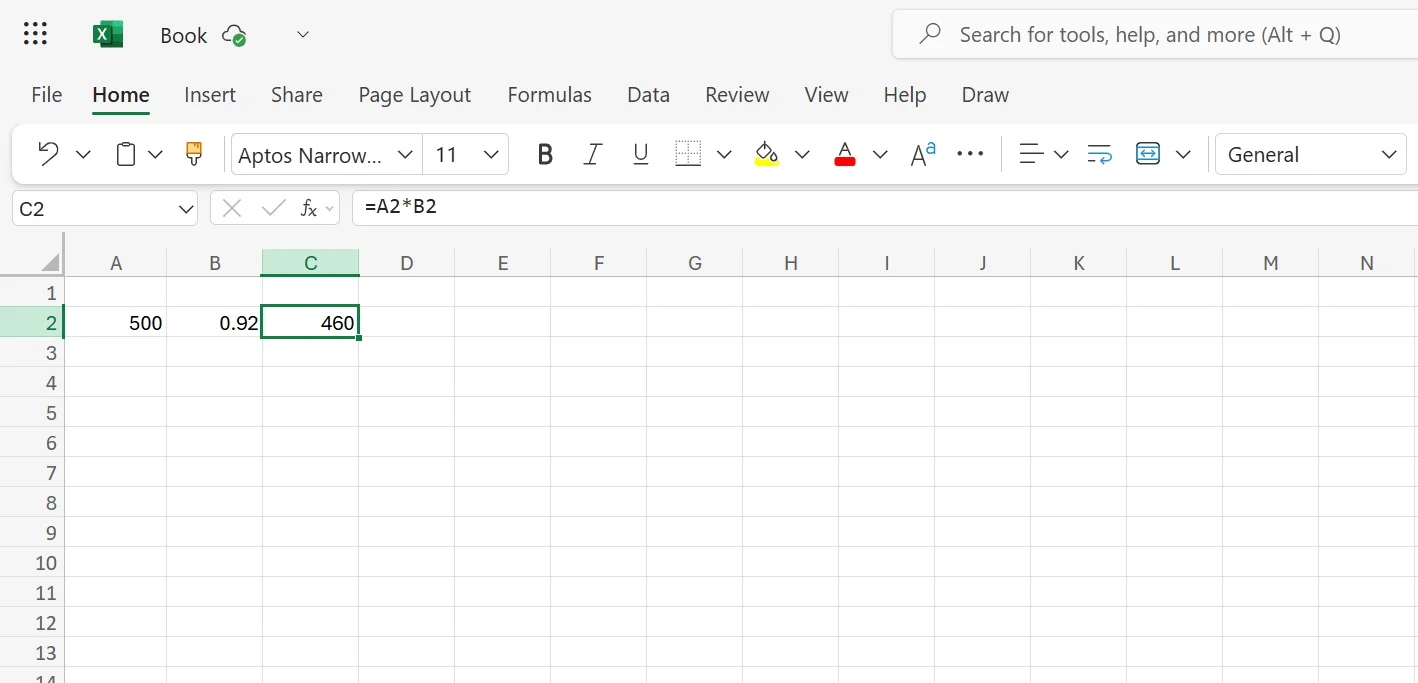
This was an example of simple currency conversion in Excel. You have seen that this process is quite simple when performing single conversions. However, when you have a large dataset, manually doing things can be time-consuming. Therefore, you need to automate the currency conversions in Excel. Let’s see how.
Check out the Best Web Service for Currency Conversion.
How To Calculate Exchange Rate In Excel Using CurrencyFreaks API For Real-Time Conversion
You can use the CurrencyFreaks user friendly API to convert in real time and automate the process. It provides live exchange rates for 1028 currencies, metals, and cryptocurrencies.
https://api.currencyfreaks.com/v2.0/rates/latest?apikey=YOUR_APIKEY&symbols=EUR,GBP,PKR
It sends a response in JSON format.
{

  "date": "2023-03-21 12:43:00+00",

  "base": "USD",

  "rates": {

    "EUR": "0.92",

    "GBP": "0.81",

    "PKR": "281.62"

  }

}
There are two easy ways to fetch this data into Excel:
Option 1: WEB SERVICE() Function
Use:
=WEBSERVICE("https://api.currencyfreaks.com/v2.0/rates/latest?apikey=YOUR_APIKEY&symbols=EUR,GBP,PKR")
This retrieves the response in JSON format.
Option 2: Power Query
Click on Data> Get Data> From Web> Paste API URL. Then convert the JSON to a Table to organize the result.
This step adds a live currency exchange rate Excel sheet. They stay updated and accurate. You don’t need to update them manually.
Want to use APIs with Google Sheets? Take a look at the Integrating Currency API with Google Sheets.
How To Convert Currency On Excel (Step-By-Step)
Automating Exchange Rates In Excel With CurrencyFreaks API
Let’s get straight to the point. Here are the steps to automate exchange rates with the CurrencyFreaks API:
Get Your API Key From CurrencyFreaks
First step is to get your API key. For this, you have to create an account at CurrencyFreaks by clicking on the Sign Up button.
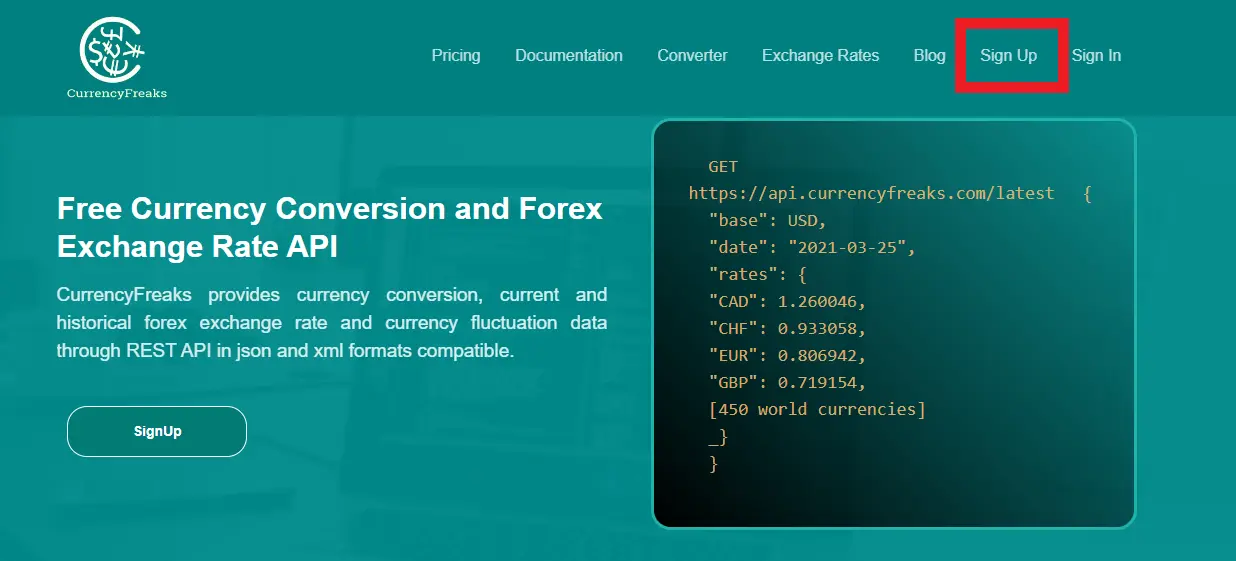
After creating an account, Sign In to your account, and you will be able to see the dashboard:
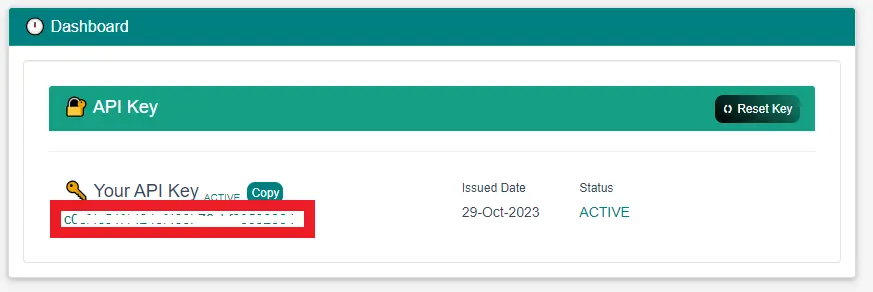
As you can see, an API key is located inside the dashboard. Copy this API key and keep it at a safe place. Do not share your API key with anyone.
Fetch Live Rates Using CurrencyFreaks API In Excel
In Excel, there are two ways to get the live exchange rates via API.
-
Power Query (Get & Transform Data)
-
WEBSERVICE
CurrenyFreaks API endpoint for live rates conversion looks like this:
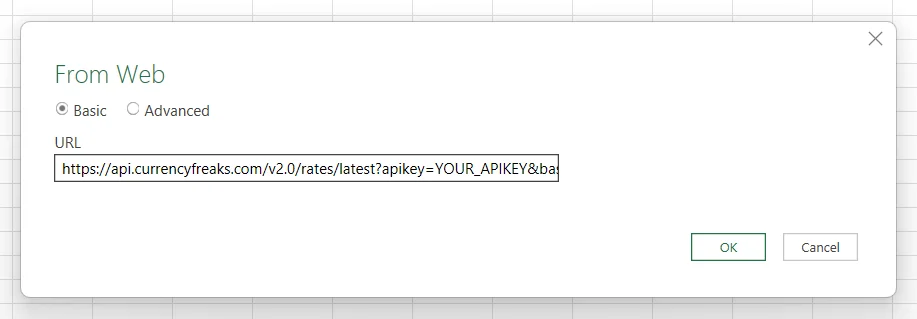
https://api.currencyfreaks.com/v2.0/rates/latest?apikey=YOUR_APIKEY&base=EUR
This URL retrieves the latest conversion rates with EUR serving as the base currency.
After the JSON or the XML has been sent to Excel, you can then use Power Query to get the structured data. This allows you to directly import the values of the exchange rates into related Excel cells. This makes the currency exchange formula in Excel dynamic and up to date.
- Power Query:
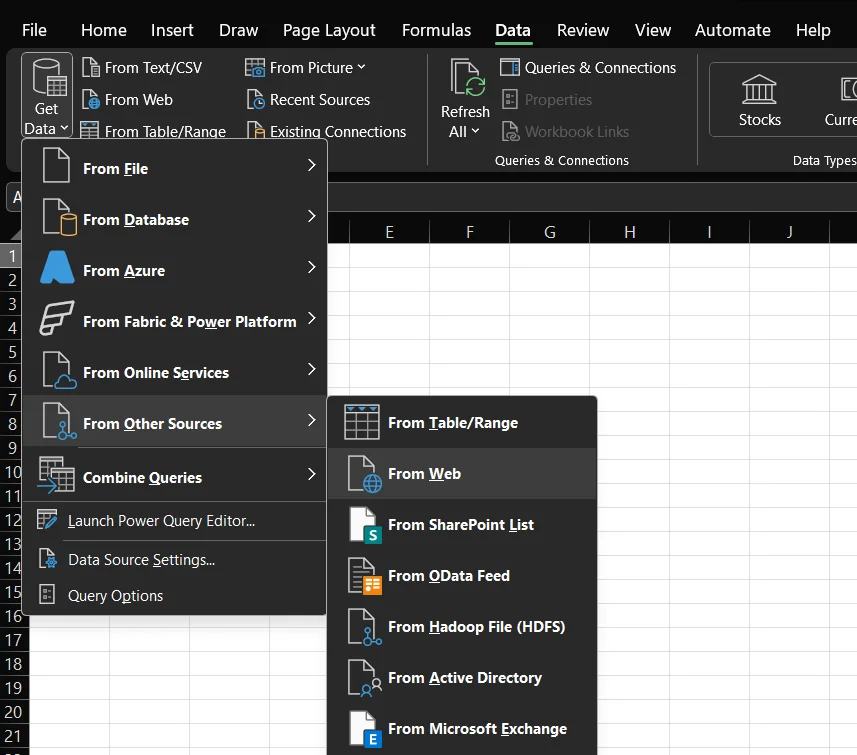
Open Excel Workbook, In Data Tab, go to Get Data From Other Sources > From Web:
Enter API URL, with API KEY:
Click on the “Record” text in front of rates, you will see all currencies and their rates:
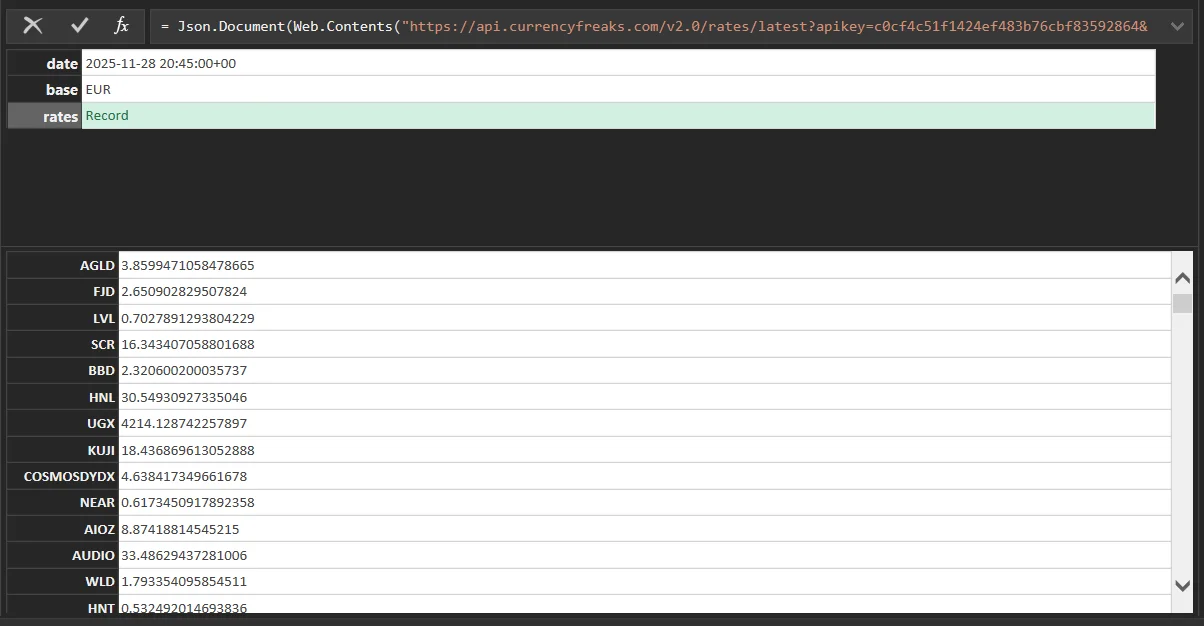
In the convert tab, click “Into Table”.
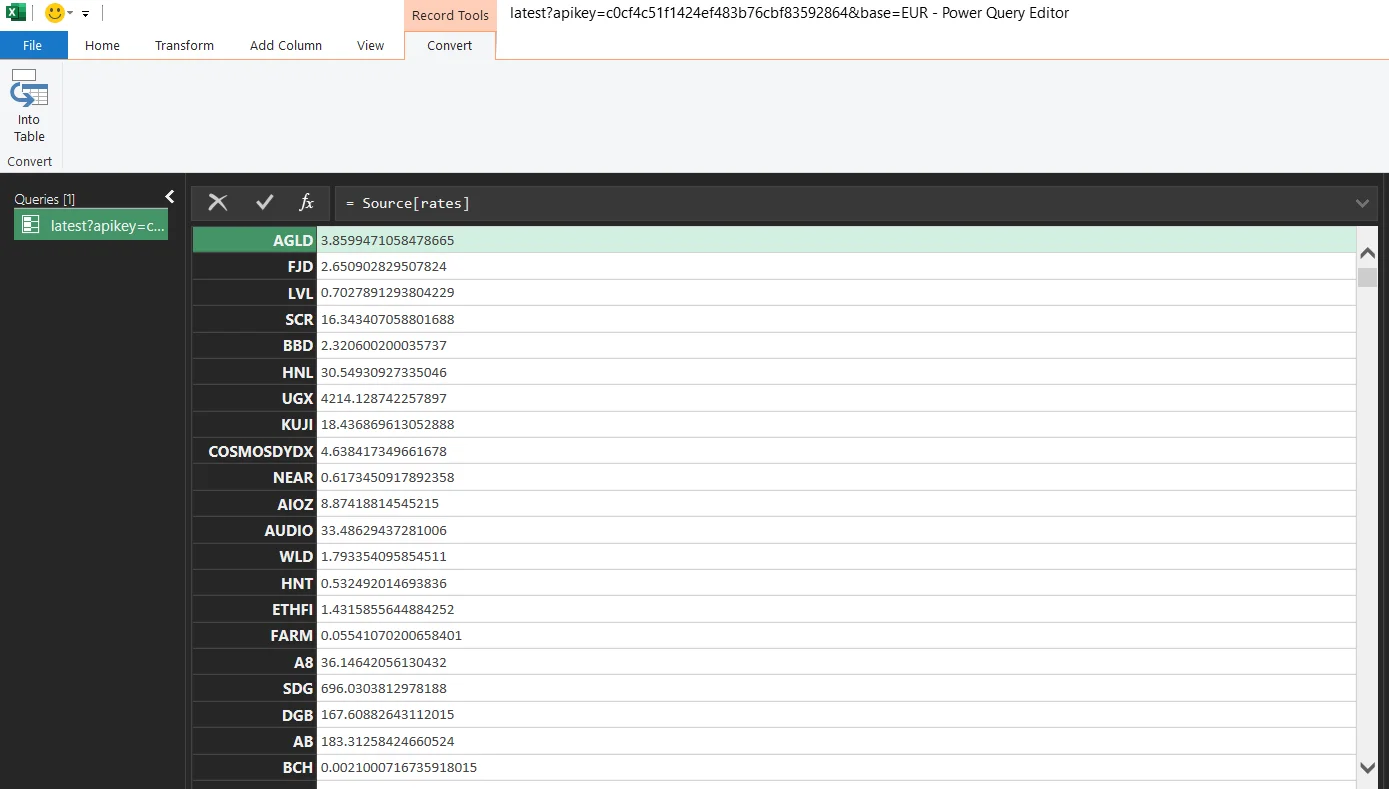
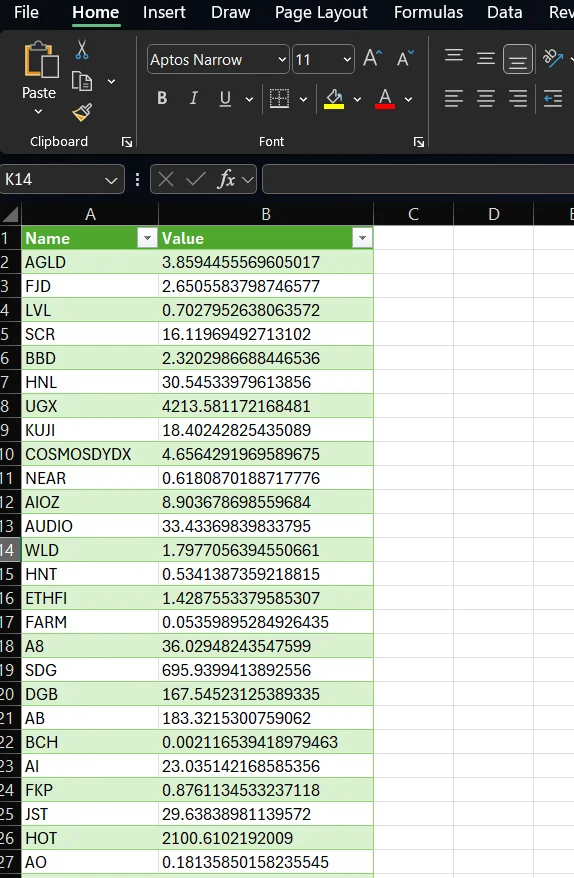
Then Close and Load. You will see live currency rates in workbook, you can refresh anytime by right-clicking table > Refresh.
- Web Service:
Open Excel workbook, paste this in any cell, and you will get live currency rates in JSON:
=WEBSERVICE("https://api.currencyfreaks.com/v2.0/rates/latest?apikey=YOUR_API_KEY&base=EUR")

Formulas in excel can be used to extract values from JSON or structure it.
How to Calculate Exchange Rate in Excel:
The CurrencyFreaks API is easy to use in Excel. It allows you to calculate, and it also updates automatically the exchange rates. Its formula is simple: Amount × Exchange Rate. However, when using live information, make sure you use Power Query or the WEBSERVICE() function to connect Excel to CurrencyFreaks.
This allows you to pull live exchange rates for various currencies, metals, or cryptocurrencies and display them on your worksheets immediately. It takes less time, requires less manual updating, and provides accurate financial reports.
CurrencyFreaks will convert your Excel sheet into a live currency converter, which updates automatically. This is particularly beneficial for finance departments, companies, and individuals involved in international business.
If you want to work with past data, you can check this blog of CurrencyFreaks, Most Reliable Historical Rate APIs in 2024.
How to Calculate Exchange Rate in Excel: Conclusion
Exchange rates matter a lot, whether it's geopolitical events, political stability or online businesses. Automating exchange rates in Excel removes manual errors and improves the financial numbers. Now, with the CurrencyFreaks API, you can control real-time conversion. This includes 1028 currencies of the world, metals, and cryptocurrencies. In fact, it is quick, safe, and accurate. Plus, it is one of the main methods to get accurate rates.
Therefore, it is perfect for engineers, accountants, and financial analysts. Best of all, you can easily connect it with your current models. This does not require complex coding.
How to Calculate Exchange Rate in Excel: FAQs
How Do I Convert Currency In Excel Using Live Rates?
Use the CurrencyFreaks API with WEBSERVICE() or Power Query to pull real-time rates directly into Excel. This is one of the best excel finds we discussed in this article.
Can I Change The Base Currency?
Yes. Include any other currency code in your API URL, such as Addbank=EUR.
Does The CurrencyFreaks API Provide Historical Rates?
Yes. The /rates/historical endpoint can be used to get past exchange information.
How To Calculate Exchange Rate In Excel Without Internet?
To do manual conversions, put in the current rate and use = Amount × ExchangeRate
How to Change Currency In Excel?
Select the cells → Home → Number → Currency/Accounting → choose your desired symbol.
Convert currencies in Excel instantly with live rates from CurrencyFreaks.


