

Introduction
Managing finances for a global business and freelancing internationally, along with effective currency management, can be frustrating. You have to deal with different kinds of currencies and the latest exchange rates, including current currency exchange rates, every day. One by one tracking the exchange rate wastes your time and causes mistakes. Static rates are a slow and unreliable process. You need updates in real-time to make better decisions.
Google Sheets makes this process easy for you by providing relevant data. Using the Google Finance function, it updates currency automatically directly into your spreadsheets. You can track crypto, automate rates, and check metal prices. In this blog, we will talk about how we can add a real-time currency converter to Google Sheets, focusing on Google Sheets currency. We will talk about their two approaches.
Begin with the basic syntax of the GOOGLEFINANCE formula for quick and easy conversions. Then upgrade to the CurrencyFreaks API for accurate, minute-based rate updates in this step-by-step guide. At the end, you will have a live currency converter ready for budgets, dashboards, and global pricing. Let's see how to add real time currency converter in google sheet:
Why Use Google Sheets For Real-Time Currency Conversion?
Google Sheets is a cloud-based system. With Google Sheets, you and your team can easily access the same data from anywhere. Because of the Google Sheet exchange rate, collaborations become easy. It works well for budgets, financial analysis, and pricing tables with multiple cells of currencies. Real-time updates ensure your data remains current and reliable.
Sheets supports built-in formulas such as GOOGLEFINANCE. You can also connect the external APIs for correctness and speed, which provides crucial currency updates. Automation is another advantage. When you set it in Google Sheets, Sheets updates it automatically by pulling returned data from various data sources. You do not need any adjustments. This saves your time, aids in data management, and resolves errors. This is ideal for finance teams and freelancers.
How to Add Real Time Currency Converter in Google Sheet: Top Methods:
Method 1: Use The GOOGLEFINANCE Formula (Basic & Free)
In Google Sheets, the GoogleFinance function works as a built-in formula. It fetches live exchange rates and live financial data, and financial information instantly.
Example Formula is: including specific date parameters.
=GOOGLEFINANCE("CURRENCY:USDGBP")
The following formula retrieves the current exchange rate for USD to GBP. It converts into a specific amount:
=A2 * GOOGLEFINANCE("CURRENCY:USDGBP")
Limitations:
-
Sometimes, you may experience a delay in data.
-
Sometimes several currencies are missing.
-
There is no support for crypto or metals.
-
There are no filtering or historical features.
GOOGLEFINANCE currency conversion is an easy and free option. Additionally, it is not ideal for dashboards or global pricing sheets that require real-time updates, especially if you need to fetch historical exchange rates .
Method 2: Use CurrencyFreaks API For 60-Second Real-Time Data
CurrencyFreaks gives currency rates. This includes cryptocurrencies, currency data, and metals.
Benefits:
-
It gives you real-time updates every 60 seconds.
-
It supports two currency formats, JSON and XML.
-
This is reliable for dashboards and automation.
You can filter data by currency symbols in CurrencyFreaks. You can pull historical rates, too. It handles advanced and global financial workflows without issues.
For the Top conversion API, read this blog: Top 10 Conversion APIs in 2024.
How To Add Real-Time Currency Converter In Google Sheet Using CurrencyFreaks
Step 1: Sign Up For CurrencyFreaks
First, log in to the CurrencyFreaks dashboard, then copy your API key from the dashboard. This API key is very important. You will need this key to connect to Google Sheets.
CurrencyFreaks gives you a free plan. The free plan includes 1,000 API calls per month.
If you want to learn about currency conversion, read this blog, the best web services for currency conversion.
Step 2: Create A New Google Sheet
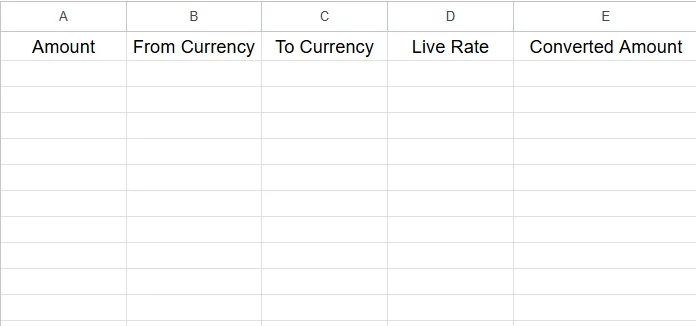
In step 2, create a new Google Sheets document and set up columns for
"Amount, From Currency, To Currency, Live Rate, and Converted Amount"
This is a layout; it keeps your sheet organized and easy to scale. With this setup, you can instantly put your data, apply formulas, and easily track conversions.
Step 3: Pull Real-Time Exchange Rates Into Google Sheets
Option A: Using IMPORTJSON (No Coding)
=IMPORTJSON("https://api.currencyfreaks.com/v2.0/rates/latest?apikey=YOUR_APIKEY", "rates" ,"noHeaders")
To fetch specific currencies, use this code:
=IMPORTJSON("https://api.currencyfreaks.com/v2.0/rates/latest?apikey=YOUR_APIKEY&symbols=USD,EUR,PKR","rates","noHeaders")
IMPORTJSON is not supported in google sheets, we can write a function for that to use it.
Step 1:
In Google Sheet, click "Extensions" -> "Apps Script". Paste following code in it:
function IMPORTJSON(url, query, headers) {
  var response = UrlFetchApp.fetch(url);
  var json = JSON.parse(response.getContentText());
  var path = query.split("/");
  for (var i = 0; i < path.length; i++) {
    json = json[path[i]];
  }
  var output = [];
  for (var key in json) {
    output.push([key, json[key]]);
  }
  return output;
}
Step 2:
Paste this in any cell:
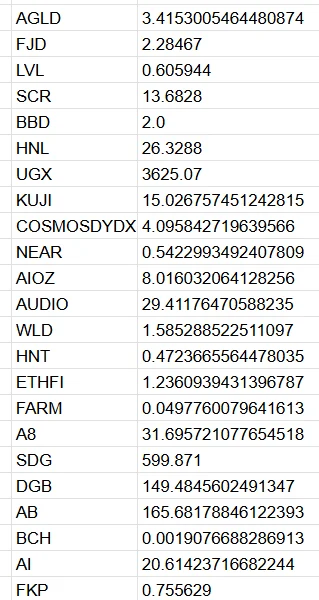
=IMPORTJSON("https://api.currencyfreaks.com/v2.0/rates/latest?apikey=YOUR_APIKEY","rates","noHeaders")
Output:
Option B: Using Apps Script (Stable For Big Data)
UrlFetchApp.fetch("https://api.currencyfreaks.com/v2.0/rates/latest?apikey=YOUR_APIKEY")
App Script handles a huge amount of datasets. It works well for two things: automation and hourly updates.
Step 1:
In Google Sheet, click "Extensions" -> "Apps Script". Paste following code in it:
function convertAmount(amount, fromCurrency, toCurrency) {
  var apiKey = "YOUR_API_KEY";
  var url = "https://api.currencyfreaks.com/v2.0/rates/latest"
          + "?apikey=" + apiKey
          + "&symbols=" + fromCurrency + "," + toCurrency;
  var response = UrlFetchApp.fetch(url);
  var data = JSON.parse(response.getContentText());
  var rates = data.rates;
  var base = data.base;  // usually USD for free plan
  // Convert amount
  if (fromCurrency === base) {
    // Straightforward
    return parseFloat(amount) * parseFloat(rates[toCurrency]);
  } else {
    // Need to first convert `amount` to base, then to target
    var amountInBase = parseFloat(amount) / parseFloat(rates[fromCurrency]);
    return amountInBase * parseFloat(rates[toCurrency]);
  }
}
Step 2:
In any cell, where you want to convert currency, use this formula:
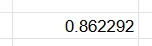
=convertAmount(1,"USD","EUR")
Output:
Step 4: Build A Real-Time Currency Converter Formula
=IMPORTJSON("https://api.currencyfreaks.com/v2.0/convert/latest?apikey=YOUR_APIKEY&from=" & A2 & "&to=" & B2 & "&amount=" & C2)
This formula always uses the latest rates and automatically calculates the converted amount.
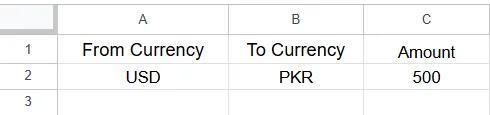
Create three columns and add currency and amount for conversion like this:
Use this script in Apps Script:
function IMPORTJSON(url) {
  try {
    const response = UrlFetchApp.fetch(url);
    const json = JSON.parse(response.getContentText());
    return parseObject(json);
  } catch (e) {
    return [["ERROR", e]];
  }
}

function parseObject(obj) {
  const result = [];
  for (const key in obj) {
    if (typeof obj[key] === "object" && obj[key] !== null) {
      const nested = parseObject(obj[key]);
      nested.forEach(row => result.push([key + "." + row[0], row[1]]));
    } else {
      result.push([key, obj[key]]);
    }
  }
  return result;
}
In any cell, paste this:
=IMPORTJSON(

 "https://api.currencyfreaks.com/v2.0/convert/latest?apikey=" & "YOUR_API_KEY" &

 "&from=" & A2 &

 "&to=" & B2 &

 "&amount=" & C2

)
Output:
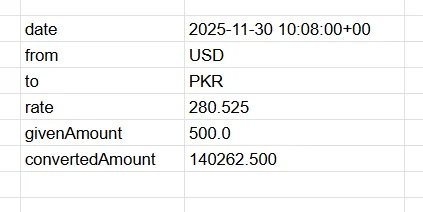
Step 5: Create A User-Friendly Converter Interface
-
For currencies, you need to set the dropdown menus
-
Set them up via Data Validation → List of Items.
-
Always enable auto-refresh to keep conversions live.
Now, anyone can use the converter for stock prices without needing to touch formulas.
Step 1:
Make four column headers "From Currency", "To Currency", "Amount" and "Converted Amount".
Step 2:
Click A2 cell, Go to Data Tab > Data Validation. In Criteria, Select Dropdown. Add the currency options like this:
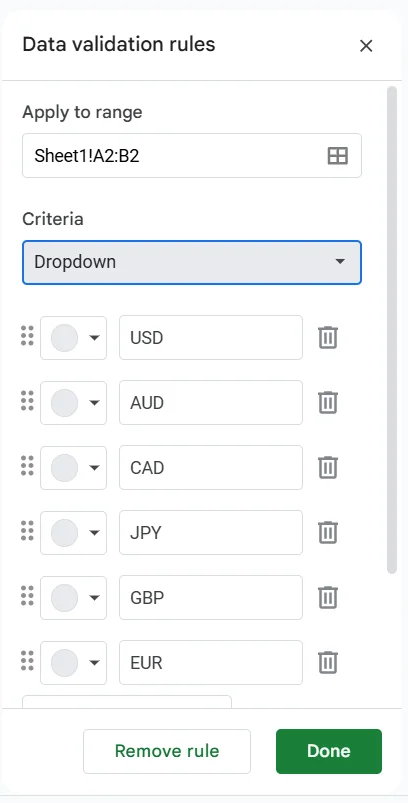
Do same for cell B2.
Step 3:
Use this script in Apps Script:
function IMPORTJSON(url) {
  try {
    const response = UrlFetchApp.fetch(url);
    const json = JSON.parse(response.getContentText());
    return parseObject(json);
  } catch (e) {
    return [["ERROR", e]];
  }
}

function parseObject(obj) {
  const result = [];
  for (const key in obj) {
    if (typeof obj[key] === "object" && obj[key] !== null) {
      const nested = parseObject(obj[key]);
      nested.forEach(row => result.push([key + "." + row[0], row[1]]));
    } else {
      result.push([key, obj[key]]);
    }
  }
  return result;
}
Step 4:
In D4 cell, write this formula:
=IMPORTJSON(

 "https://api.currencyfreaks.com/v2.0/convert/latest?apikey=YOUR_API_KEY" &

 "&from=" & B2 &

 "&to=" & C2 &

 "&amount=" & A2

)
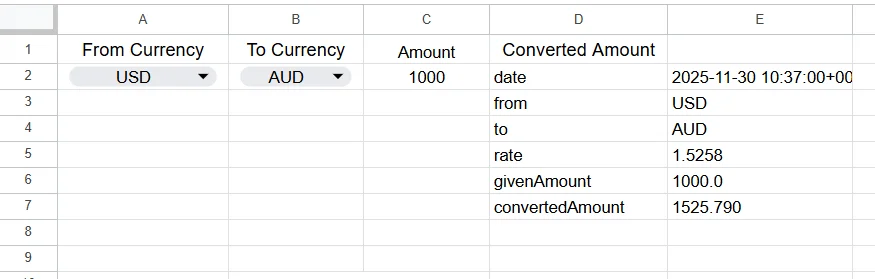
Output:
Try changing currency from dropdown and amount, converted amount will be automatically updated:
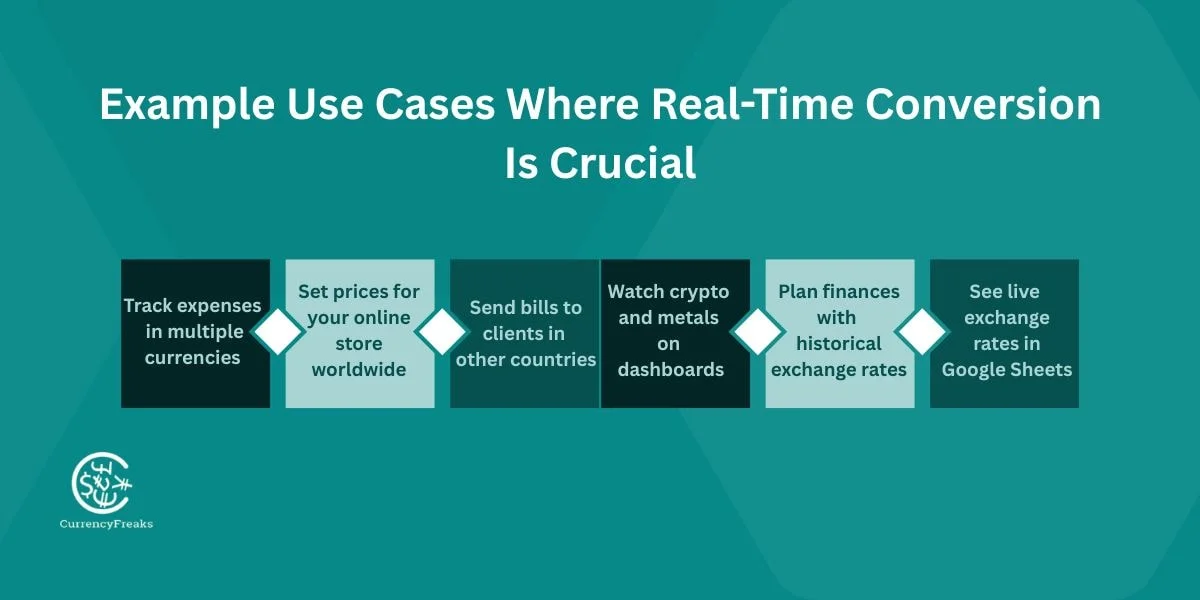
Example Use Cases Where Real-Time Conversion Is Crucial
-
Keep track of your expenses in different currencies.
-
Set prices for your online store around the world.
-
Send invoices to clients in other countries.
-
Watch crypto and metals in the dashboards.
-
Plan your finances using past exchange rates.
-
See live exchange rates in your Google Sheet.
CurrencyFreaks vs GOOGLEFINANCE:
What's The Difference?
| Feature | GOOGLEFINANCE | CurrencyFreaks |
|---|---|---|
| Cost | It is Free | Free & Paid Plans both |
| Data Frequency | You may experience a delay in data. | Every 60-second updates |
| Currency Coverage | This one is limited | It has currencies, crypto, and metals |
| Filtering | None | Available (symbols=) |
| Historical Data | This one is limited | Full historical & time-series |
| Accuracy | Sometimes gives you inaccurate data | It is Reliable & accurate |
| Dashboard Ready | This one is limited | Fully supported platform |
CurrencyFreaks works faster and more reliably than GOOGLEFINANCE for global rates, including those relevant to market capitalization.
For more tips, read this blog, Integrating Currency API with Google Sheets.
How To Use Historical And Forecasting Data In Google Sheets
Pull Historical Exchange Rates
You can put historical exchange rates from CurrencyFreaks API using the following endpoint:
$ curl 'https://api.currencyfreaks.com/v2.0/rates/historical?apikey=YOUR_APIKEY&date=2022-03-20'
Here is the JSON response:
{
    "date": "2022-03-20",
    "base": "USD",
    "rates": {
        "FJD": "2.1176",
        "MATIC": "0.6832001093120175",
        "MXN": "20.385892",
        "STD": "21382.190504",
        "SCR": "14.408136",
        "CDF": "2005.74861",
        "BBD": "2.0",
        "HNL": "24.411536",
        "UGX": "3583.338449",
        "ZAR": "14.9602",
        "STN": "22.425165",
        .
        .
        .
    }
}
You can also fetch historical exchange rates using the Google Sheets built-in currency conversion:
=IMPORTJSON("https://api.currencyfreaks.com/v2.0/rates/historical?apikey=YOUR_APIKEY&date=" & A2)
Build Time Series Charts
If you want to understand your desired currency movements, track them daily, weekly, and monthly basis. Charts show these changes and support understanding currency codes, budgeting, and planning, offering practical tips for financial decision-making during market open. Time series charts showing opening prices make it easy to identify patterns and trends, enabling you to make informed decisions quickly.
You can put time series exchange rates from CurrencyFreaks API using the following endpoint:
$ curl 'https://api.currencyfreaks.com/v2.0/timeseries?apikey=YOUR_APIKEY&startDate=2022-06-01&endDate=2022-06-07&base=eur&symbols=pkr,usd'
Here is the JSON response:
{
    "startDate": "2022-06-01",
    "endDate": "2022-06-07",
    "base": "EUR",
    "historicalRatesList": [
        {
            "date": "2022-06-01",
            "rates": {
                "PKR": "210.58073648790247",
                "USD": "1.0651300000000001"
            }
        },
        {
            "date": "2022-06-02",
            "rates": {
                "PKR": "212.41441993262268",
                "USD": "1.07504"
            }
        },
        {
            "date": "2022-06-03",
            "rates": {
                "PKR": "211.80743999999882",
                "USD": "1.0719"
            }
        },
        {
            "date": "2022-06-04",
            "rates": {
                "PKR": "212.3705498572507",
                "USD": "1.0719"
            }
        },
        {
            "date": "2022-06-05",
            "rates": {
                "PKR": "212.49419555477172",
                "USD": "1.0725240781655547"
            }
        },
        {
            "date": "2022-06-06",
            "rates": {
                "PKR": "213.19503849443953",
                "USD": "1.06928999144568"
            }
        },
        {
            "date": "2022-06-07",
            "rates": {
                "PKR": "215.71624763798502",
                "USD": "1.0696700000000001"
            }
        }
    ]
}
If you want to learn about the best currencies APIs, read this blog by CurrencyFreaks, 10 Best Currency Exchange APIs.
Use Fluctuation API
Use the API for fluctuations and understand the three-letter code to calculate daily and weekly currency rates. This helps you with understanding multiple currencies dynamically, including understanding the target currency code and currency codes, understanding market movements with three-letter currency codes, and managing risks effectively.
This is better for your financial calculations, financial planning, and budget, ensuring up-to-date conversions are maintained. By tracking fluctuations, including closing price, you can make better decisions and protect your business and investments from unexpected changes.
You can put fluction API rates from CurrencyFreaks API using the following endpoint:
$ curl 'https://api.currencyfreaks.com/v2.0/fluctuation?apikey=YOUR_APIKEY&startDate=2022-10-01&endDate=2022-10-15&symbols=PKR&base=GBP'
Here is the JSON response:
{
    "startDate": "2022-10-01",
    "endDate": "2022-10-15",
    "base": "GBP",
    "rateFluctuations": {
        "PKR": {
            "startRate": "254.331",
            "endRate": "243.874",
            "change": "10.457",
            "percentChange": "4.11"
        }
    }
}
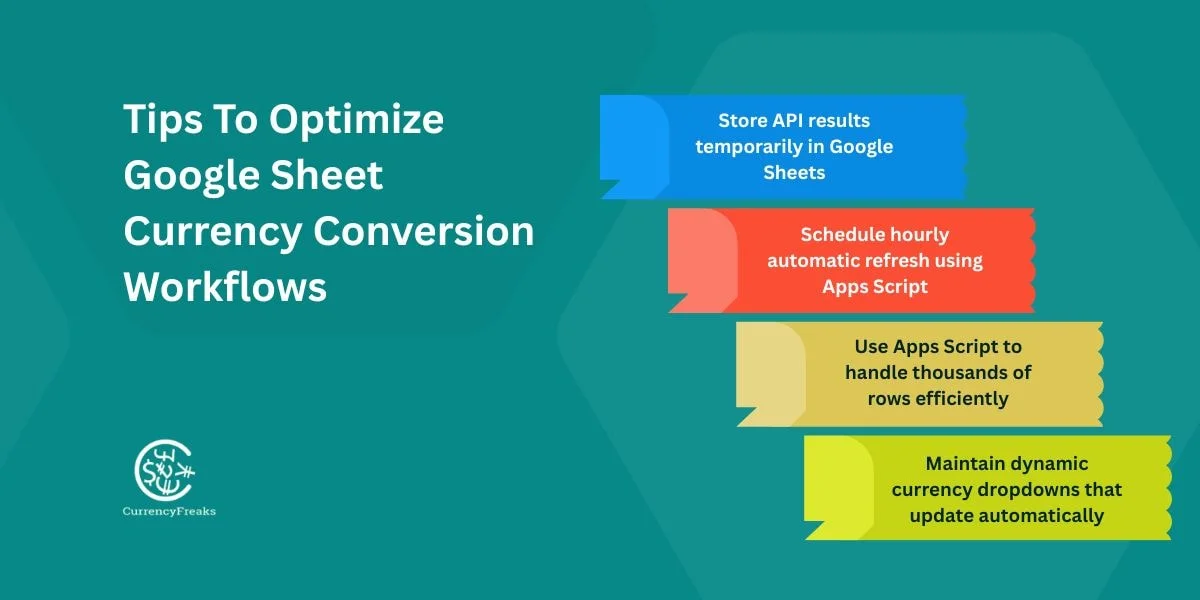
Tips To Optimize Google Sheet Currency Conversion Workflows
-
To reduce API requests, store results temporarily in Google Sheets.
-
Schedule automatic refreshes hourly by using Apps Script.
-
To manage thousands of rows, use Script Apps; it would not slow down your sheet.
-
Keeps your currency symbols in dropdowns; they will update automatically.
Why Choose CurrencyFreaks For Google Sheet Integrations?
CurrencyFreaks gives you updates in real-time every 60 seconds. It keeps your data up to date. It supports two types of formats, JSON and XML, which give you flexible integration options. It gives you reliable performance globally. The API covers all types of currencies, including crypto, metal, US dollars, Canadian dollars, and Japanese yen, which makes it ideal for diverse financial workflows.
All endpoints are SSL-secured, which ensures that your data is safe. Furthermore, CurrencyFreaks offers you a free plan with 1,000 API calls, key takeaways, and comprehensive documentation. The setup is simple and also accessible for beginners and advanced users, as long as you have an internet connection .
How to Add Real Time Currency Converter in Google Sheet: Conclusion
Real-time currency conversion is crucial for individuals managing global finances. Static rates slow the decision-making process and increase errors. Google spreadsheet exchange rate makes tracking currency processes easy. You can use the Google Sheet currency conversion formula in your Google Sheets, "GOOGLEFINANCE". This formula is used for quick conversions.
For faster and more correct updates, the CurrencyFreaks API is the good and best choice. It supports one hundred plus currencies, cryptocurrencies, and metals. With the simple formulas and Apps Scripts, you can automate the conversion rates, refresh rates, and you can build dashboards. This saves time, reduces mistakes, and gains reliable data for budgeting, forecasting, and invoicing.
Start your free CurrencyFreaks plan. Turn your Google Sheets into a live, real-time currency converter for U.S. dollars and one currency, allowing you to write formulas and make smarter financial decisions every day.
How to Add Real Time Currency Converter in Google Sheet: FAQs
How Do I Convert Currency In Google Sheets?
Use GOOGLEFINANCE for basic usdeur exchange rate and the current day's trading volume. Use CurrencyFreaks API for real-time conversion, especially for international transactions . It will give you the opening and closing exchange rate.
Why Is GOOGLEFINANCE Not Giving Real-Time Rates?
It sometimes displays delayed data and provides outdated information.
How Do I Pull Live Exchange Rates In Google Sheets?
=IMPORTJSON("https://api.currencyfreaks.com/v2.0/rates/latest?apikey=YOUR_APIKEY")
Can I Convert Cryptocurrencies In Google Sheets?
Yes. CurrencyFreaks supports crypto rates and various currency codes .
How Do I Refresh Exchange Rates Automatically?
Google spreadsheet currency conversion refreshes periodically. You can use the fill handle to help App Script refresh periodically and force an hourly refresh.
How Do I Convert Thousands Of Rows?
Use relative references and drag formulas. Or integrate Apps Script for bulk conversion using absolute references and proper cell references.


