

Many WordPress sites attract visitors from different countries every day. These visitors often see prices in unfamiliar currencies, which slows down decisions. A WordPress currency converter helps remove that first layer of confusion.
Pricing friction appears in simple moments during browsing. Users stop to calculate values or search exchange rates elsewhere. This is where multi currency wordpress plugins quietly improve the experience.
A live converter shows accurate prices in real time. It reduces doubt and builds trust during checkout. Adding a currency converter WordPress setup makes your site feel ready for global buyers.
Common Ways To Add A Currency Converter In WordPress
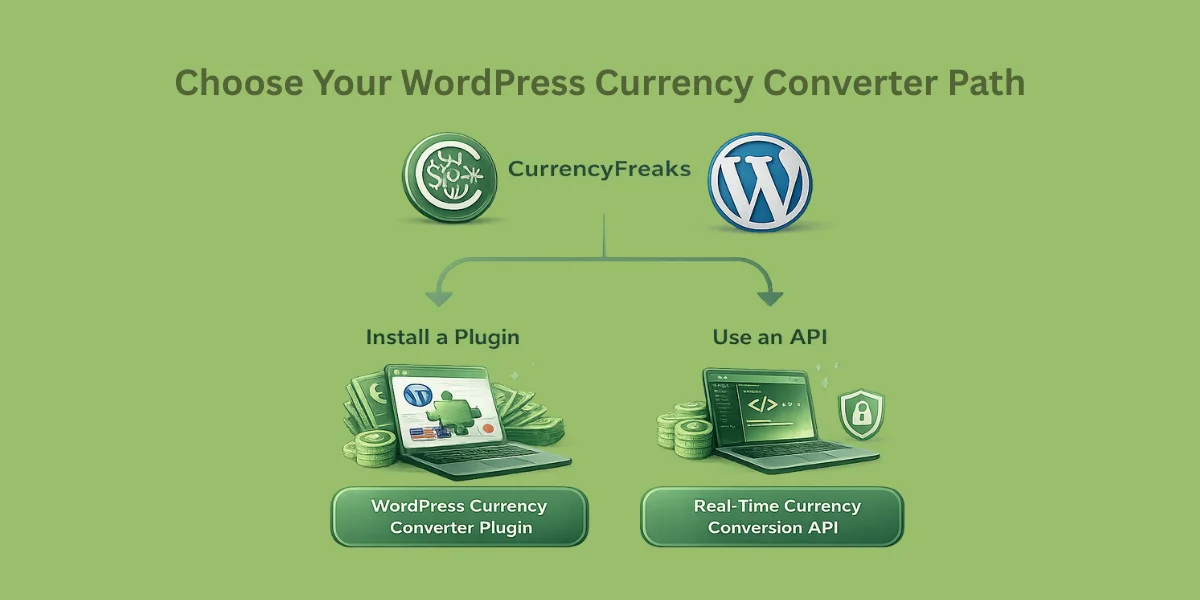
There are two main ways to add a currency converter to a WordPress site. One option uses ready-made plugins from the WordPress ecosystem. The other option relies on a currency conversion API with custom logic.
Both approaches support smooth currency conversion for global visitors. Each method works better for a specific type of setup.
Some options let you control every detail. Others are quicker to set up and easier to manage. This helps in choosing the right multi currency switcher.
Helpful Resource: Python Currency Converter API -- Free and Real-Time
Using A WordPress Currency Converter Plugin
Using a WordPress currency converter plugin is the fastest way to get started. It works right away and does not need a custom setup. You install it, choose a preferred currency, and add a currency converter widget using blocks or shortcodes.
The main benefit is speed and simplicity. You do not need to touch code. Setup stays quick and clean. Most setups finish in minutes with basic options.
There are limits you should know about. Most of the plugins depend on cached exchange rates instead of live data. Free plans often cap currencies or lock features behind a currency converter plugin upgrade.
Building A Custom Currency Converter With An API
What You’ll Build
By the end of this tutorial, your WordPress site will have:
-
Live exchange rates
-
A simple currency converter
-
API-powered real-time data
-
No dependency on paid plugins
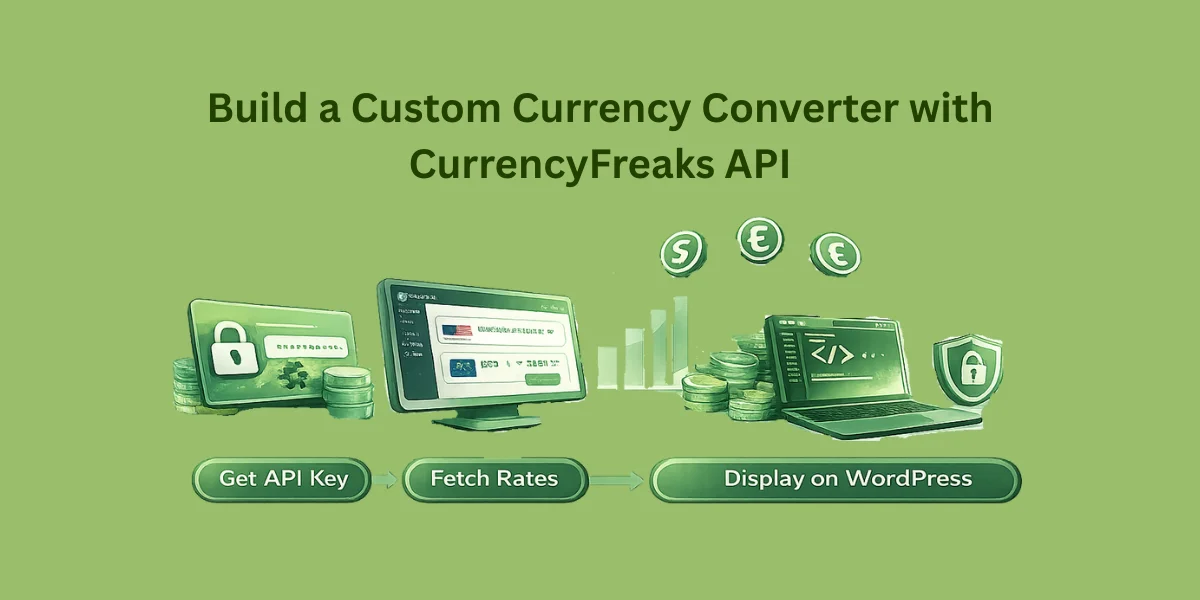
Step 1: Get Your CurrencyFreaks API Key
-
Visit CurrencyFreaks
-
Create a free account
-
Copy your API key from the dashboard
You’ll use this key to authenticate requests from your WordPress site.
Step 2: Understand the API Endpoint
CurrencyFreaks provides a simple exchange rate endpoint:
Example endpoint structure:
https://api.currencyfreaks.com/v2.0/rates/latest?apikey=YOUR_API_KEY
This returns:
-
Base currency (USD by default)
-
All supported exchange rates
-
Fresh, real-time data
Step 3: Add a Custom Currency Converter to WordPress
Since your site doesn’t have a pricing page, the best approach is:
-
Add a custom shortcode
-
Use JavaScript + API fetch
-
Embed it anywhere (post, page, sidebar)
Step 4: Create a Custom Shortcode in WordPress
Add this code to your theme’s functions.php file
(or use a plugin like Code Snippets if you prefer)
function currencyfreaks_converter_shortcode() {
    ob_start();
    ?>
    <div id="currency-converter">
        <input type="number" id="amount" placeholder="Amount" value="1" />

        <select id="from">
            <option value="USD">USD</option>
            <option value="EUR">EUR</option>
            <option value="GBP">GBP</option>
        </select>

        <select id="to">
            <option value="EUR">EUR</option>
            <option value="USD">USD</option>
            <option value="PKR">PKR</option>
        </select>

        <button onclick="convertCurrency()">Convert</button>

        <p id="result"></p>
    </div>

    <script>
    async function convertCurrency() {
        const amount = document.getElementById("amount").value;
        const from = document.getElementById("from").value;
        const to = document.getElementById("to").value;

        const response = await fetch(
            "https://api.currencyfreaks.com/v2.0/rates/latest?apikey=YOUR_API_KEY"
        );
        const data = await response.json();

        const rateFrom = data.rates[from];
        const rateTo = data.rates[to];

        const converted = (amount / rateFrom) * rateTo;
        document.getElementById("result").innerText =
            amount + " " + from + " = " + converted.toFixed(2) + " " + to;
    }
    </script>
    <?php
    return ob_get_clean();
}

add_shortcode('currency_converter', 'currencyfreaks_converter_shortcode');
🔒 Important: Replace YOUR_API_KEY with your actual CurrencyFreaks API key.
Step 5: Embed the Converter Anywhere
Use this shortcode in any page or post:
[currency_converter]
Here is the final output:

Step 6: Optional Improvements
You can easily enhance this setup by:
✔ Adding More Currencies
Populate the dropdown dynamically from the API response.
✔ Styling the Converter
Use CSS to match your theme’s design.
✔ Caching API Responses
Store rates for a few minutes to reduce API calls and improve performance.
✔ Changing Base Currency
CurrencyFreaks allows flexible base currency handling.
Plugin Vs API: Which Approach Fits Your Website?
Plugins work best for simple sites with basic needs. Blogs often use a multi currency plugin to keep setup quick. Ease matters more than perfect accuracy here.
APIs suit serious pricing and sales workflows. Ecommerce stores must display multiple currencies with real time accuracy. APIs also beat a currency converter plugin WordPress when deep control and custom logic matter.
Choosing The Right Currency Conversion API
Not all currency APIs are built the same, especially for WooCommerce multi currency stores. Some only update prices once a day, and that can make your store feel off when rates move fast. Others weaken multi-currency support or push basic features behind paid plans.
A strong API is one that handles real-time and historical rates without guesswork. It must respect your default currency and allow flexible base switching. Reliable sources like the European Central Bank help keep numbers accurate.
Security matters just as much as data quality. HTTPS endpoints protect requests and responses. Clear limits and readable docs make currency settings easier to manage as traffic grows.
Helpful Resource: Top 10 Currency Conversion API in 2024
Why CurrencyFreaks Is Built For WordPress Use Cases
CurrencyFreaks supports over 1,000 global currencies with consistent updates. Each rate is tied to a standard currency code and proper currency symbols. Updates happen at the minute level, which improves currency display accuracy.
Crypto and metals come included without extra setup. You can start free and scale when needed. The API works smoothly with a wordpress currency converter or a WordPress currency converter plugin.
It fits real WordPress workflows without forcing lock-ins. You can use it inside themes, custom plugins, or server logic. You stay in control of your data and pricing logic.
Prerequisites Before You Start
You need a self-hosted WordPress site before anything else. You should have access to your theme files or a custom plugin. Your changes stay protected this way. You can also add logic like a currency switcher without breaking anything.
Basic PHP helps with server-side requests. JavaScript helps with live updates and AJAX handling. You also need a CurrencyFreaks API key to power a WordPress plugin currency converter for international customers and support key features.
Method 1: Adding A Currency Converter Using A WordPress Plugin
Install a plugin from WordPress.org that supports as many currencies as possible. Turn it on from the dashboard and finish setup. It works well for a global audience.
Set the base currency and choose currency rates. Choose how often rates update to keep values up-to-date. Also, make sure to save the settings before moving on.
Add it using a shortcode, widget, or block. Use it to display prices for global customers. Most tools include a free version.
Limitations To Be Aware Of
Plugins often limit layout and styling choices. Branding changes usually need paid access. Some advanced features stay locked.
Rates may load from cache instead of live. That can affect accuracy during changes. Limits apply unless you upgrade to the best currency converter plugin WordPress.
Location detection is often missing. Extra data types cost more. Power users prefer the best WordPress currency converter plugin.
Method 2: Building A Custom Currency Converter With CurrencyFreaks API
This method lets you control how currency conversion behaves. It fits stores that sell to an international audience and need precise pricing. It also removes the limits you often see with popular payment gateways.
Getting Your CurrencyFreaks API Key
Start by creating a CurrencyFreaks account and opening the dashboard. You will find the API key listed clearly with usage details. This key connects your requests to payment gateways that support various currencies.
Free plans are fine for testing and small traffic sites. Paid plans unlock higher limits and advanced controls in the premium version. Rate limits are documented so you can plan usage safely.
Always store the API key on the server. Never expose it in frontend scripts on a WordPress website. Server-side handling keeps your data secure.
Fetching Live Exchange Rates
CurrencyFreaks offers a Latest Rates endpoint for real-time data. It returns clean responses that are easy to parse. This helps when working with different currencies.
You can limit the response to a selected currency list. Smaller payloads load faster and reduce usage. Only request the currency name values you actually need.
Each response includes proper status codes. Handle errors like 401 and 429 gracefully. Always expect temporary failures.
Creating The Conversion Logic
Start with the amount the user types in. Allow easy toggling between one currency and different currencies. Keep everything clear so international shoppers never feel lost.
Use live rates to calculate values accurately. Apply multiplication or division using the base currency as the reference. This avoids conversion errors. Small mistakes can impact trust with many international shoppers.
Round values carefully before display. Avoid long decimals in pricing. Clear formatting builds trust.
Displaying The Converter In WordPress
A PHP shortcode is the easiest approach. It works well on any WordPress site layout. You keep logic and markup together.
AJAX allows instant updates without reloads. This improves speed and user experience. It works smoothly with a currency converter widget WordPress setup.
You can drop the converter into pages or WooCommerce product templates. It integrates cleanly with WooCommerce. This supports a currency converter WordPress plugin WooCommerce approach.
Optional Enhancements
IP-based detection shows prices in a familiar selected currency. This helps shoppers feel comfortable instantly. It works well for a global audience.
Allow users to switch the base currency manually. This helps compare prices across various currencies. It supports smarter buying decisions.
You can extend it with crypto or metal rates. Add caching to reduce API calls. This is ideal if you want to add a currency converter to your WordPress site using a custom currency converter plugin in WordPress.
Performance, Security, And Best Practices
Never expose API keys in frontend code. Always fetch data server-side to protect access. This keeps your WordPress currency converter secure and stable.
Use WordPress transients to cache exchange rates. Save them for a short time to avoid repeated API calls. This keeps the WordPress currency converter fast and stable.
Filter supported options and respect rate limits. Handle downtime with clean fallbacks. A smart plugin helps in making the failures invisible to users.
Advanced Currency Features: When And Why To Use Them
Historical rates work well for finance content. They explain past product prices clearly. This helps readers trust long-term data.
Time series data powers dashboards and reports. It shows movement without noise. This supports real time exchange rates analysis.
Fluctuation data improves trading views. IP-based conversion helps WooCommerce stores feel local. This builds customer loyalty over time.
Testing And Troubleshooting
Watch for API errors like 401, 403, and 429. Each signals a different problem. Logs protect a user-friendly interface.
Wrong math often starts with base rate mistakes. Recheck formulas and sources. Always test how users view prices.
Track usage and set alerts early. This avoids surprise outages. To nicely manage the currency logic, you can either use a currency converter WordPress plugin or a currency converter WordPress widget.
Conclusion
Plugins work for quick setups. They suit simple sites. Speed is why a plugin makes sense.
APIs give accuracy and control. They scale with traffic and features. They pull current exchange rates from open exchange rates.
For long-term growth, APIs are safer key factors. A WordPress currency converter beats currency converter plugins for WordPress. Choose on-site goals, CurrencyFreaks fits.
Helpful Resource: Learn about Currency Exchange Rates
FAQs
Can I Add A Currency Converter To WordPress Without Coding?
Yes, a currency converter can be added to WordPress without coding. Plugins help in setup. It works well for basic business needs. But customization stays limited.
Is It Safe To Use A Currency Conversion API On WordPress?
Yes, when API keys stay server-side. HTTPS protects data in transit. This setup is secure.
How Often Should Currency Exchange Rates Be Updated?
E-commerce and SaaS sites benefit from frequent updates. Minute or hourly updates work best. Blogs can update less often.
Can I Convert Cryptocurrencies And Metals In WordPress?
Yes, if your data source supports them. CurrencyFreaks includes both. Plugins often require paid upgrades.
Will A Currency Converter Slow Down My WordPress Site?
Not if caching is used properly. Filter API requests to the needed currencies. Performance stays stable.
Can I Use A Currency Converter With WooCommerce?
Yes, both plugins and APIs work with WooCommerce. APIs offer deeper pricing control. They integrate well with product templates.
Do I Need A Paid API Plan To Get Accurate Rates?
They give basic accuracy with automatic rate updates. Paid plans handle higher traffic and stay more stable.
Want full control and live rates? Build your currency setup with CurrencyFreaks and scale without limits.


