

Selling internationally works well until pricing becomes unclear. International shoppers expect prices in their local currency. When that fails, hesitation appears fast.
A currency mismatch adds friction during browsing and checkout. Shoppers start mental math and lose momentum. That pause ends in cart abandonment.
Many store owners mix up display currency and checkout settlement currency. Display currency shows localized prices on pages. Checkout currency depends on payment gateways and Shopify Payments.
There are three ways to handle this with a Shopify currency converter. You can use Shopify Markets with Payments. You can install a conversion app or build a custom API setup.
This guide walks you through each option available. It explains does Shopify automatically convert currency and does Shopify convert currency. So you can easily choose the best currency converter.
Helpful Resource: Learn about CurrencyFreaks
Understanding Shopify’s Native Currency Capabilities
Shopify Markets, Store Currency, and Local Pricing
Every Shopify store starts with a base currency. This currency supports internal accounting and reporting. All product prices are saved in that format to support global sales.
Shopify Markets helps stores sell in multiple currencies. Prices adjust automatically for supported regions. This setup is basically designed for Shopify and works best with Shopify Payments.
A currency switcher updates the prices shoppers see on the page. You can use the location and payment method to convert prices using Shopify displays. Checkout only works when the currency matches the supported gateways.
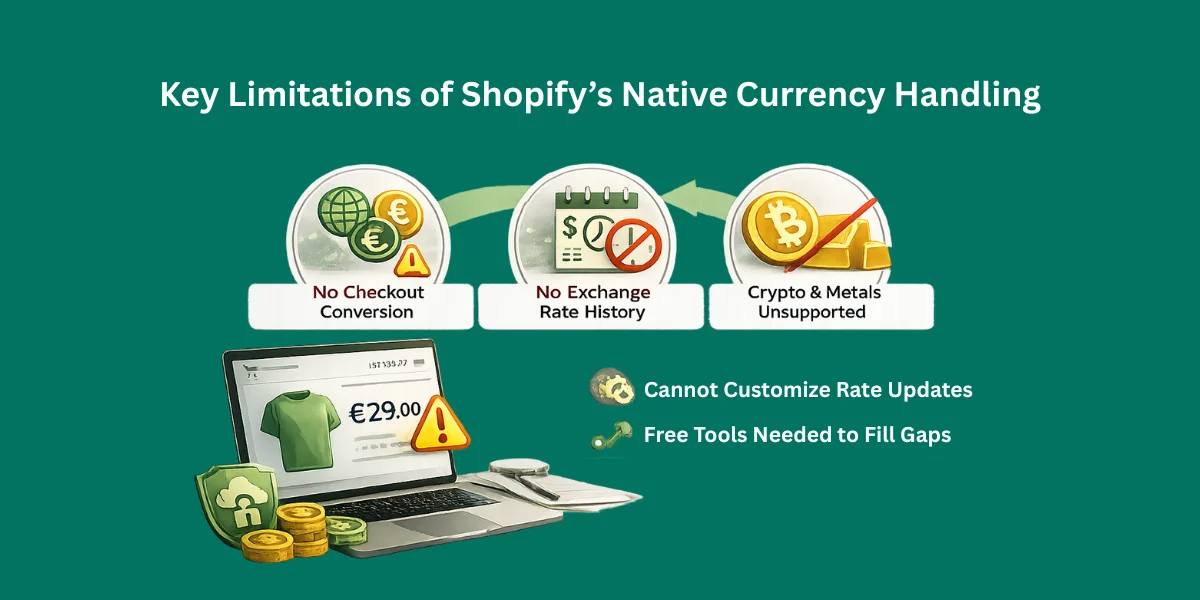
Key Limitations of Shopify’s Native Currency Handling
Native currency conversion has limits. Without Shopify Payments, switching affects display only. Checkout may still use the base currency.
Shopify does not store historical exchange rates. You cannot lock pricing using past values. This limits advanced pricing control in shopify multi currency setups.
Crypto and metal pricing are not supported. Rate update timing cannot be customized. Some stores rely on tools with a free plan available to fill these gaps.
Ways to Add a Currency Converter to Shopify
Using a Shopify Currency Converter App
Apps built for Shopify start fast. You install from the App Store with no code. They run automatic currency conversion for international customers.
Most apps switch by location and add dropdowns. They show a clear currency conversion rate. This helps customers shop easily.
Setup is fast for small stores. Costs grow over time. You rely on the app to stay accurate and online.
Helpful Resource: How to Integrate Free Currency Converter API in Python?
Building a Custom Currency Converter (API-Based)
A custom currency converter gives full control over pricing display and calculations.
You manage update frequency, logic, and accuracy using real time APIs without Shopify Payments.
This approach suits international brands, supports SaaS pricing models, and handles complex conversion rules at scale across regions and currencies globally today online stores.
Choosing the Right Currency Conversion API for Shopify
An API delivers data fast. Live and past exchange rates both matter. The API should cover a wide range of currencies.
Low latency helps frontend speed. Secure HTTPS endpoints required. Flexible limits control store currency.
JSON responses ease development. Clear docs save time. Transparent pricing avoids surprises.
CurrencyFreaks is designed according to the needs of Shopify. It supports almost 1000 currencies and assets. Rates refresh at minute intervals.
It supports both JSON and XML formats. SSL security comes built in. IP detection helps show the preferred currency and works smoothly with bank account logic, an unlimited multi currency switcher, and total reviews.
Helpful Resource: 10 Best Currency Exchange API Options for Developers
Prerequisites Before You Start
You need access to your Shopify admin. You should understand basic Liquid and JavaScript. This avoids manual exchange rate conversions.
Theme file access is required. An API key from CurrencyFreaks is needed. Free and paid plans support a dynamic currency converter Shopify.
You must know how prices render in your theme. This helps avoid display issues across Shopify themes with currency converter. Preparation saves debugging time later for busy developers.
Method 1: Adding a Currency Converter Using a Shopify App
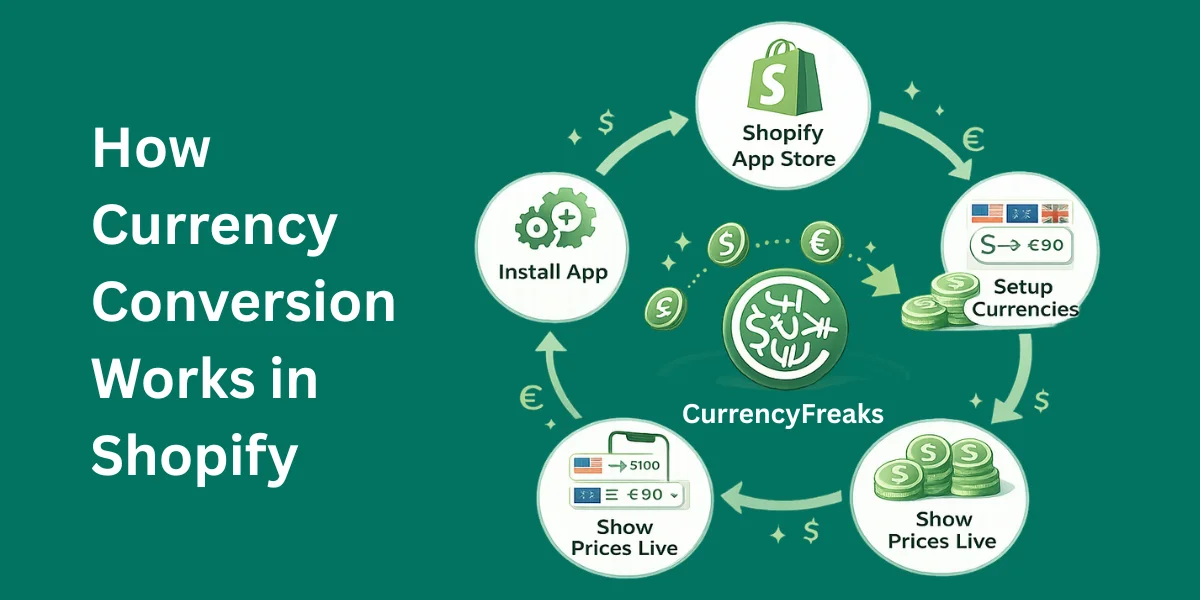
Get a currency converter app from the Shopify App Store and install it. Turn on the necessary permissions. Choose the prices for each marketplace.
Next, set up the supported currencies. Enable automatic switching while watching the manual conversion rate accuracy. Decide where the selector appears.
Most apps place the switcher in the header. Some support carts with manually captured payments. Others add a conversion fee.
Limitations
App-based solutions have limits. Monthly subscriptions continue forever. Control over the currency converter code Shopify stays limited.
Rate logic often stays hidden. Updates may lag markets. Crypto or coin currency converter Shopify CSS options are rare.
You depend on third-party uptime. Scripts slow pages. These tradeoffs matter.
Method 2: Building a Custom Currency Converter with CurrencyFreaks API
Getting Your API Key
Create a CurrencyFreaks account first. Then sign up and open the dashboard. Start building your custom converter in a safe way.
Free plans work well for testing. Paid plans handle higher traffic and support edit shopify currency converter needs.
Keep the API key private at all times. Treat it like a password to avoid misuse.
Fetching Live Exchange Rates
Use the Latest Rates endpoint. This helps explain how does shopify convert currency using live exchange data.
Limit responses with the symbols parameter. Smaller payloads keep requests fast and stable.
Parse JSON responses with care. Keep only the data needed to power a free shopify currency converter app.
// Example: Fetch live rates from CurrencyFreaks
const apiKey = 'YOUR_CURRENCYFREAKS_API_KEY';
const baseCurrency = 'USD';
const symbols = 'EUR,GBP,JPY';

fetch(`https://api.currencyfreaks.com/latest?apikey=${apiKey}&base=${baseCurrency}&symbols=${symbols}`)
  .then(response => response.json())
  .then(data => {
    console.log('Exchange rates:', data.rates);
    // Example: Access EUR rate
    const eurRate = parseFloat(data.rates.EUR);
    console.log(`1 ${baseCurrency} = ${eurRate} EUR`);
  })
  .catch(error => console.error('Error fetching rates:', error));
Implementing Currency Conversion Logic
Store all product prices in one base currency. This keeps pricing consistent across the store.
Multiply prices using live rates. Apply price rounding for each local currency. Use the Shopify currency converter code to format symbols correctly.
Handle decimal rules carefully. Some currencies use no decimals. On the other hand other currencies need high precision.
<!-- In product-template.liquid -->
<span class="price" data-base-price="{{ product.price | money_without_currency }}">
  {{ product.price | money }}
</span>

<script>
const exchangeRates = { EUR: 0.92, GBP: 0.81, JPY: 134.5 }; // fetched dynamically
const selectedCurrency = 'EUR'; // Example: dynamically set by user

document.querySelectorAll('.price').forEach(el => {
  const basePrice = parseFloat(el.dataset.basePrice) / 100; // Shopify stores price in cents
  const convertedPrice = (basePrice * exchangeRates[selectedCurrency]).toFixed(2);
  el.innerText = `${selectedCurrency} ${convertedPrice}`;
});
</script>
Integrating with Shopify Themes
Add the script in theme.liquid. Write JavaScript that stays light and simple. Make sure the page still loads fast and smoothly.
Store base prices in data attributes. It keeps price updates clean. It also makes changes easier to manage.
Apply logic across product, collection, and cart pages. Support a clear currency selector for shoppers.
<select id="currencySwitcher">
  <option value="USD">USD</option>
  <option value="EUR">EUR</option>
  <option value="GBP">GBP</option>
</select>

<script>
document.getElementById('currencySwitcher').addEventListener('change', function() {
  const selectedCurrency = this.value;
  // Assume convertPrices is a function like in previous snippet
  convertPrices(selectedCurrency);
});
</script>
Optional Advanced Features
Detect location using Switcher by geolocation AI. Show prices automatically based on the user's region.
Allow manual switching with a currency switcher by geolocation. Save preferences during browsing and checkout.
Follow consumer privacy act ccpa and california consumer privacy act. Add ccpa opt out icon and support privacy act ccpa opt.
// Example: Detect user's country via IP and switch currency
fetch('https://ipapi.co/json/')
  .then(res => res.json())
  .then(location => {
    const country = location.country;
    let currency = 'USD';
    if(country === 'DE') currency = 'EUR';
    else if(country === 'GB') currency = 'GBP';

    convertPrices(currency); // Use same function from previous snippet
    document.getElementById('currencySwitcher').value = currency;
  });
Performance, Security, and Best Practices
Never expose API keys in frontend code. This matters even more when handling GPT AI translation currency through Shopify requests server side.
Use server proxies or Shopify app proxies. Cache rates, apply rounding rules, and filter currencies to keep responses fast and stable.
Monitor usage and handle failures cleanly. Performance and security go together. Reaching 5 stars trust should not slow your pages.
// server.js
import express from 'express';
import fetch from 'node-fetch';
const app = express();

app.get('/rates', async (req, res) => {
  const apiKey = process.env.CURRENCYFREAKS_API_KEY;
  const symbols = req.query.symbols || 'EUR,GBP';
  const response = await fetch(`https://api.currencyfreaks.com/latest?apikey=${apiKey}&symbols=${symbols}`);
  const data = await response.json();
  res.json(data);
});

app.listen(3000, () => console.log('Currency proxy running on port 3000'));
Advanced Use Cases for Shopify Stores
Advanced stores use an AI translation currency converter. They pair it with smart GPT AI translation to localize catalogs and messaging worldwide.
They set prices by region and use geolocation AI analytics. Historical rates help analyze and boost global sales across markets intentionally.
Display and checkout pricing may differ or match. This supports pricing models and global sales with language to go global with smart.
Testing and Troubleshooting
Testing helps you understand how to add a currency converter to Shopify the right way. Products, carts, and checkout prices should always match on every page. This step also confirms your currency converter shopify code behaves as expected.
Learn how to convert currency in shopify by handling unsupported currencies early. Add fallbacks to prevent broken displays across devices.
Watch rate limits closely and debug issues early. Test across browsers and devices since small mismatches quickly hurt buyer trust.
Conclusion
Apps work best when speed matters, and the answer does Shopify have a built in currency converter, clearly. They work well for small stores and teams using the app who want things simple and low risk. Setup stays quick and simple with app support provided and a helpful support team.
APIs offer more control and higher accuracy for a Shopify currency converter at scale. They help brands learn how to add currency converter in Shopify with custom logic. You can set rounding rules and show features tailored to each region and pricing needs.
Choice depends on size, reach, and traffic volume across markets and growth plans today. API paths feel safer when selling globally with smart GPT style automation.
API based solutions are future-proof. Global stores are better than plugins long term stability wise.
FAQs
Can I Add A Currency Converter To Shopify Without Coding?
Yes, this can be done easily. A Shopify currency converter app handles setup automatically. Customization remains limited.
Does Shopify Automatically Convert Currencies At Checkout?
Only with Shopify Payments enabled. A Shopify currency converter otherwise works for display only. Checkout still uses the base currency.
Is It Safe To Use A Currency Conversion API With Shopify?
Definitely, you can use the API safely when keys are properly secured. Many stores pair an API with a Shopify currency converter for accuracy. Use server-side handling and avoid exposing credentials.
Can I Show Crypto Or Metal Prices On My Shopify Store?
Yes, with the right API. CurrencyFreaks supports both alongside a Shopify currency converter. Shopify native tools do not.
Will Currency Conversion Slow Down My Shopify Store?
No, when caching is used. A well configured shopify currency converter runs fast. Poor setup is what causes issues.
Can I Control How Often Exchange Rates Update?
Yes, this is possible by using the API. Apps with a Shopify currency converter often limit this. Custom logic gives more flexibility.
Do Currency Converters Affect Shopify SEO?
No, when implemented correctly. Prices from a Shopify currency converter change dynamically. URLs remain unchanged.
Use CurrencyFreaks to power clean, accurate currency conversion that scales as your Shopify store grows.


